Thunderbolt 5 docks: your buying guide

Thunderbolt 5 docks: your buying guide


It’s been nearly three years since Intel announced its Thunderbolt 5 high-speed data transfer standard, but uptake for it has been relatively slow – both in devices supporting the standard and actual USB accessories supporting it. That might be for good reason, as its flagship feature, the 80Gbps transfer bandwidth, is a pretty ludicrous number that not every consumer will require. Besides, Thunderbolt 4 already offers 40Gbps of transfer bandwidth, which is more than most people usually need.

Happily, the needs of users have grown, and Thunderbolt 5 is, slowly but surely, finding its audience. Consequently, the accessories market has also grown in its range of offerings. So, whether you’re a gamer who wants a Thunderbolt 5 dock to support multiple high-resolution displays, or a content creator who wants blazing-fast transfer speeds when working with an external SSD, these are the things you need to look out for when you’re purchasing a Thunderbolt 5 dock.

  1. 1. What is Thunderbolt 5?
  2. 2. What’s the difference between Thunderbolt 4 and 5? Do I even need Thunderbolt 5?
  3. 3. Is Thunderbolt 5 just USB-C? And is it the same as USB4?
  4. 4. Does everything in the chain need to be Thunderbolt 5 certified?
  5. 5. What else can Thunderbolt 5 docks offer?
  6. 6. Looking for a Thunderbolt 5 dock? Here’s where to start
  7. 7. Don’t want or don’t need Thunderbolt 5? Check out these Thunderbolt 4 docks instead

What is Thunderbolt 5?

Thunderbolt 5

Thunderbolt 5 has been around for a while, but accessories supporting it are still only trickling in.

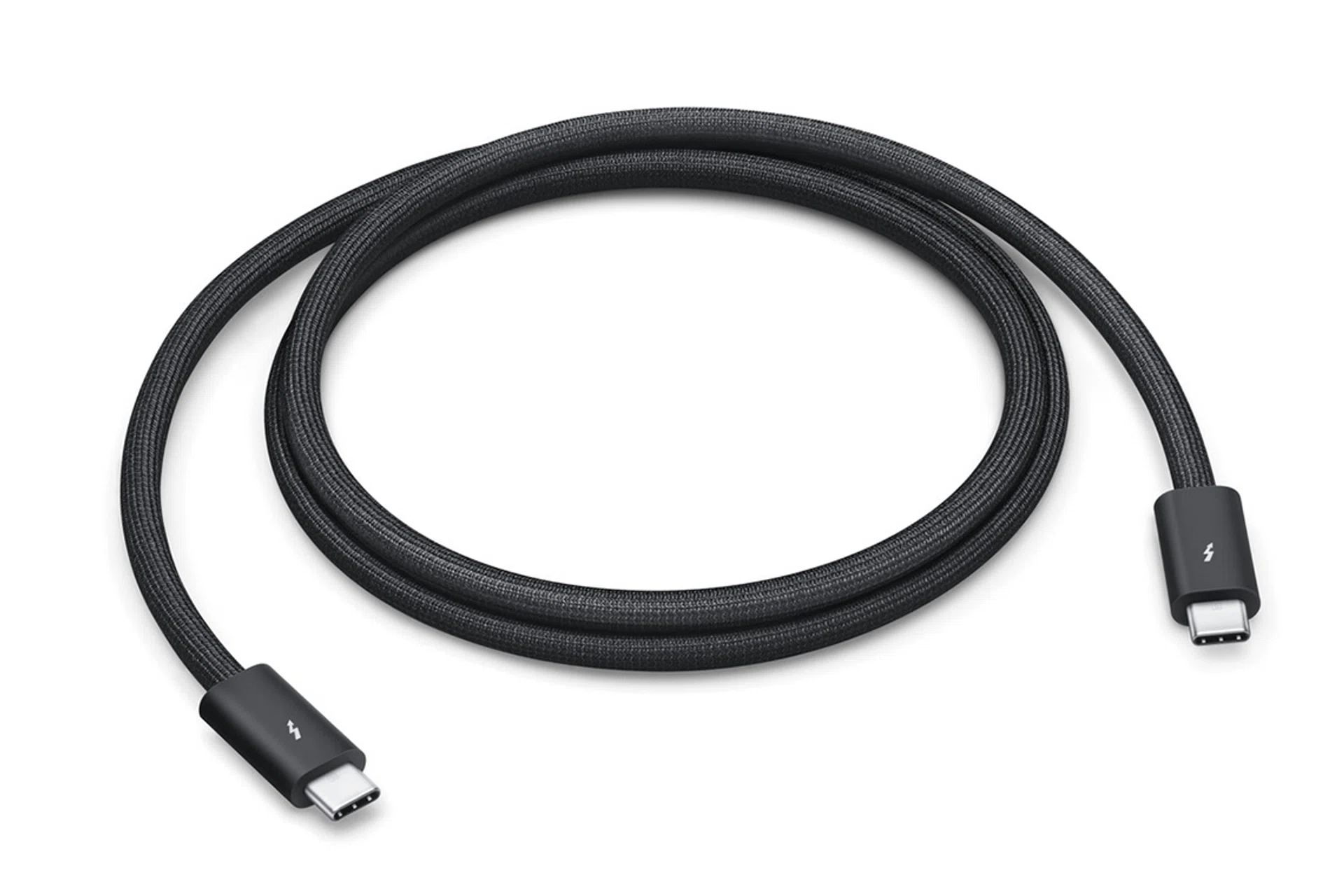
Image: Apple.

Thunderbolt 5 is a data transfer standard that was released in 2023 by Intel, and if you’ve followed some of our laptop stories from the past few years, you probably would’ve noticed its increasing adoption – for starters, it comes equipped with some Apple laptops beginning with 2024’s 16-inch MacBook Pro. Its main feature is its ability to transfer data up to 80Gbps (bi-directionally), which can be boosted to 120Gbps in a single direction. 

In practical terms, this should not only mean incredibly fast file transfers, but it also opens up opportunities with peripherals like displays. Here, Thunderbolt 5 is able to support up to three external 4K displays at 144Hz or two 8K display at 60Hz. The maximum refresh rate output has also been increased to 540Hz, and you’re able to daisy chain monitors from a single port – how many displays depends on factors like the GPU you’re running and the resolution of the monitors.

PCIe data throughput has also been doubled to 64Gbps, which should be a boon to anyone considering getting an eGPU or external PCIe-based M.2 SSD. And as for power, Thunderbolt 5 is able to support up to 140W passthrough charging for laptops.

What’s the difference between Thunderbolt 4 and 5? Do I even need Thunderbolt 5?
Thunderbolt 5

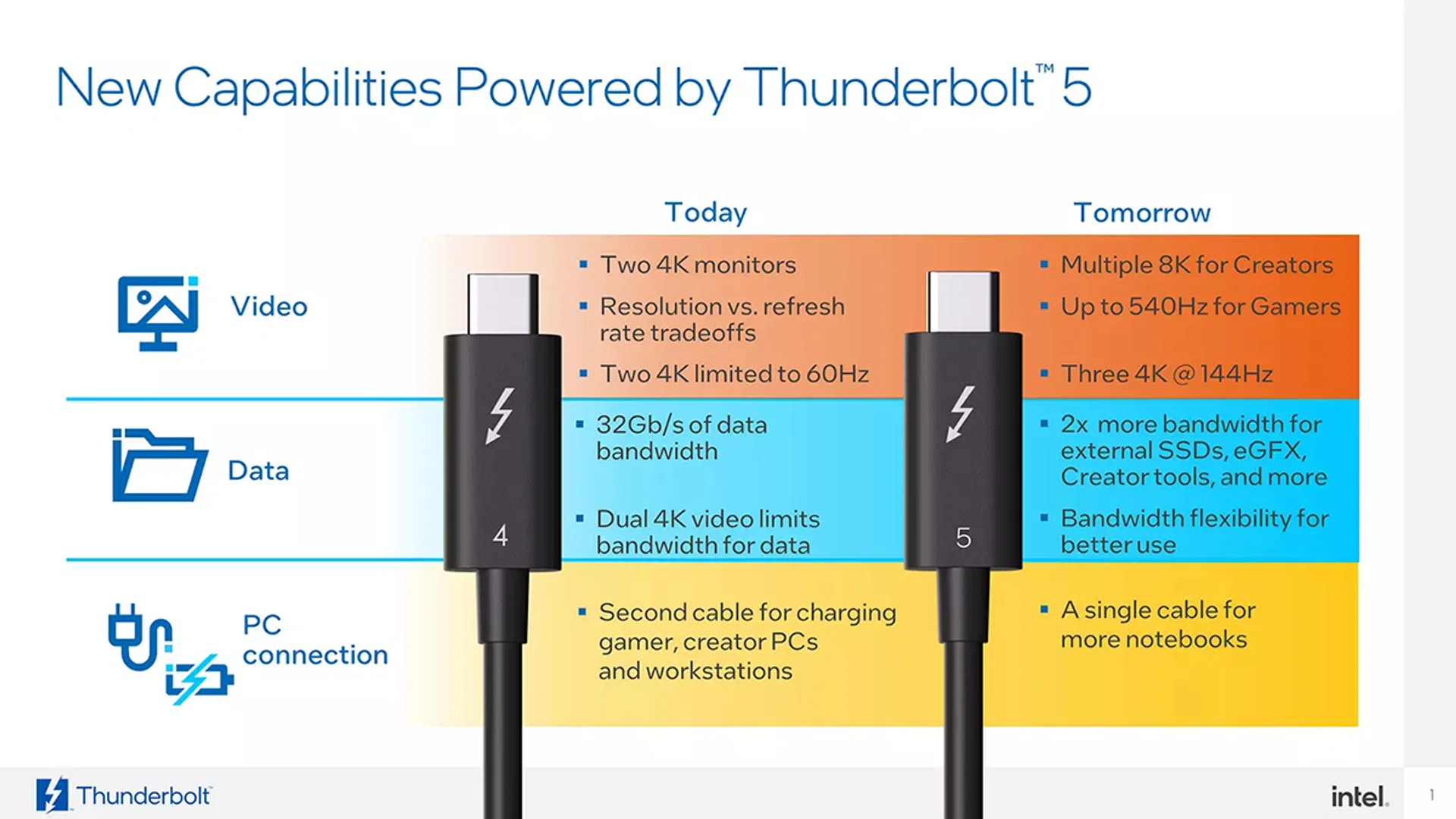
The high-level differences between Thunderbolt 4 and 5.

Image: Intel

To put it briefly, Thunderbolt 5 is an improved version of Thunderbolt 4. A lot of the specs mentioned above are the highest of the Thunderbolt versions, and this is most apparent in the doubling of transfer bandwidth from 40Gbps to 80Gbps (alongside that 120Gbps boost). Thunderbolt 4 could also only support a maximum PCIe data throughput of 32Gbps, as well as just two 4K@60Hz monitors. 

Power delivery on Thunderbolt 4 was also capped at 100W – which, as mentioned earlier, that’s increased to 140W on Thunderbolt 5.

If your device only supports Thunderbolt 4, well, there’s only one choice. If it supports Thunderbolt 5, however, it’s a question worth asking since Thunderbolt 5 is backwards compatible with Thunderbolt 4, and docks supporting the latter standard are often cheaper (well, relatively speaking).

Furthermore, Thunderbolt 4 is still capable enough for most users, but if you have intensive workflows that require high bandwidth like video production, it might be worth upgrading to a Thunderbolt 5 setup. Otherwise, you’re not likely to max out the 40Gbps that Thunderbolt 4 offers. And if you have a PC, there’s a good chance your motherboard doesn’t support Thunderbolt 5, as such support is currently only found on Intel Z890 chipset mobos (the highest-end chipset Intel offers for boards right now). As it stands, laptop users are more likely to benefit from Thunderbolt 5.

Just make sure that all your gear is Thunderbolt 5-certified as well, and that you’re running the right software (some accessories might require your OS to be more up-to-date). We experienced how fast and finicky Thunderbolt 5 accessories can be in our review of the OWC Envoy Ultra SSD last year.

Is Thunderbolt 5 just USB-C? And is it the same as USB4?
Thunderbolt 5

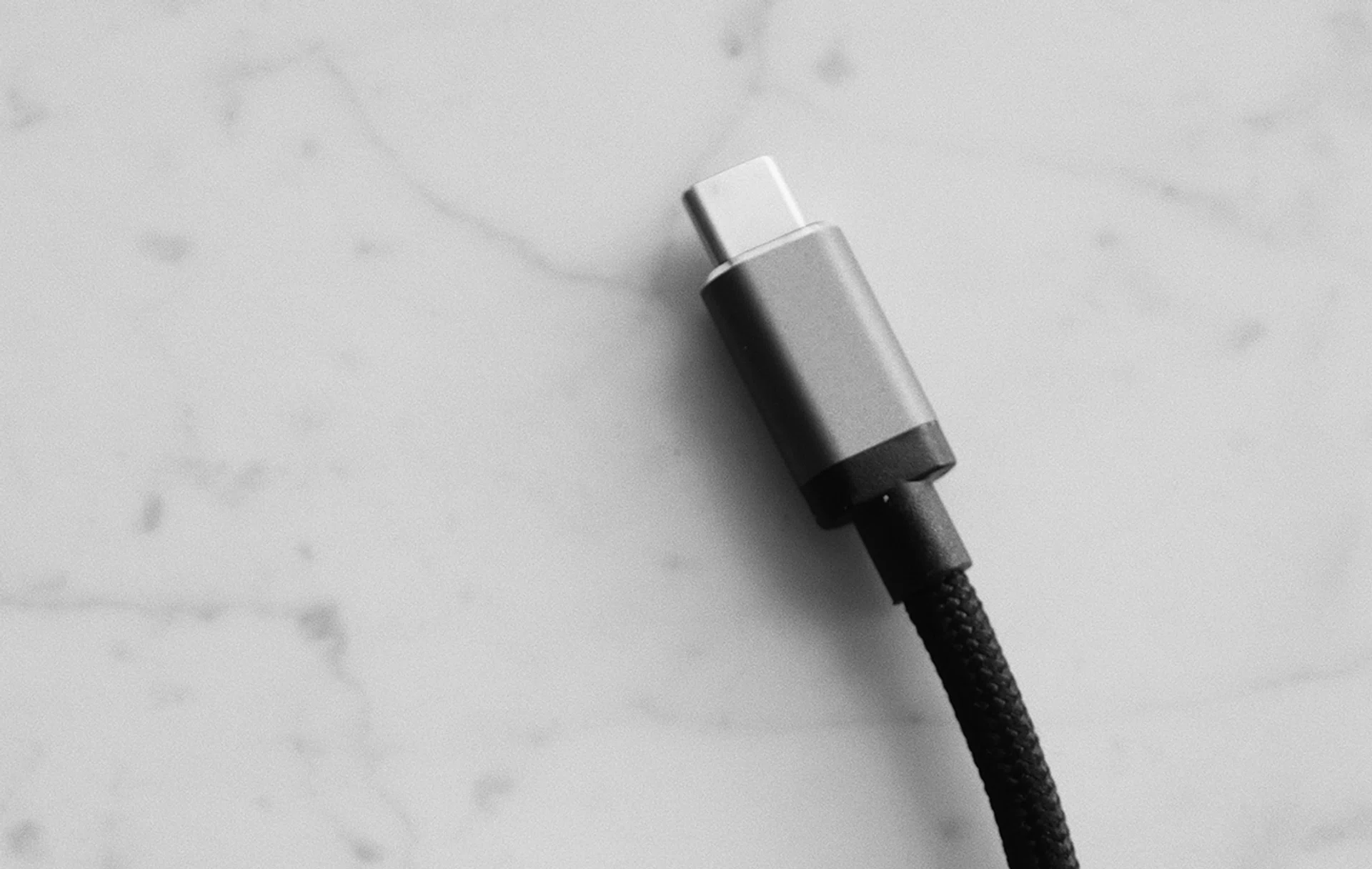
USB-C, the one port to rule them all, has instead caused a whirl of confusion.

Image: Pexels

Thunderbolt 5 only uses a Type-C connector, so you can follow this rule – not all USB-C ports are Thunderbolt 5-enabled, but all Thunderbolt 5 ports are USB-C. And just to note, Thunderbolt 5 also natively supports DisplayPort 2.1, even if it doesn’t use the conventional DP connector.

But now we move on to the issue of USB4. The USB standard is already quite messy, and it doesn’t help that USB4 and Thunderbolt tend to be used interchangeably as they share many similar specifications (no surprise, as Thunderbolt is currently built on the USB4 platform). While USB4 – specifically USB 80Gbps, the latest standard outlined by USB-IF – shares the same 80Gbps bandwidth as Thunderbolt 5, Intel’s certification assures you that products carrying the label, such as docks, cables and the ports on host devices, are capable of things like PCIe 4.0 and DP 2.1.

Key point: Not all USB4 ports support Thunderbolt 5, but all Thunderbolt 5 ports support USB4.

USB4 is capable of all the same features of Thunderbolt 5, but they’re all optional features that USB-IF doesn’t mandate for certification (barring the transfer speed, of which USB-IF has labels for). And while steps have been taken to reduce fragmentation, such as the Windows Hardware Compatibility Program mandating support for PCIe and display output for laptops with USB4, the Thunderbolt 5 logo guarantees that the product you’re getting, whether an accessory or host device, meets Intel’s more stringent minimum requirements.

In any case, while cables supporting 80Gbps over USB4 are getting more commonplace, the same can’t be said about hubs – as it stands, you’re more likely to find Thunderbolt 5 docks than USB4 v2 ones.

Does everything in the chain need to be Thunderbolt 5 certified?
Thunderbolt 5

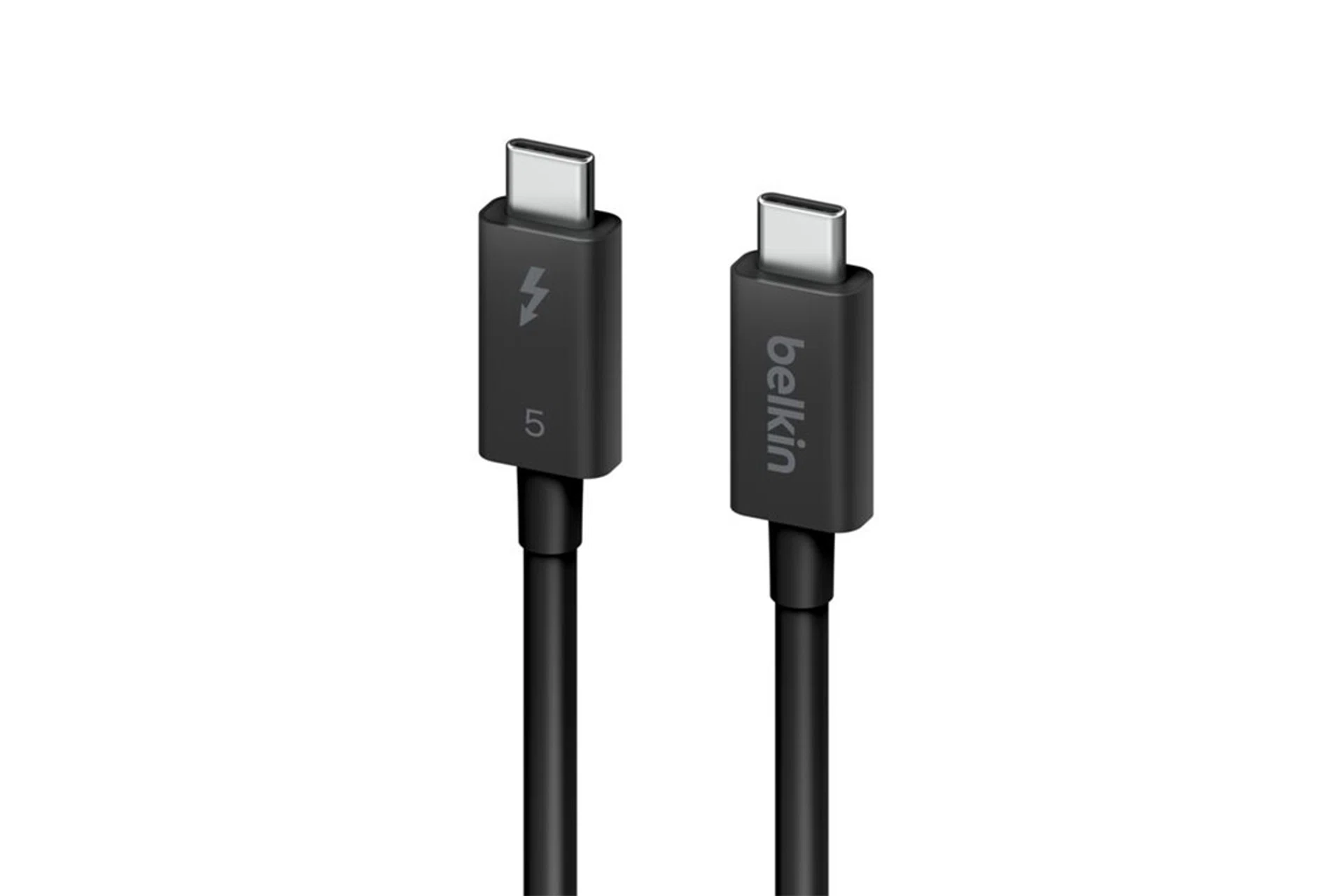
When you’re buying Thunderbolt 5 cables, look out for the Thunderbolt logo on the packaging and the cable itself.
While we’re talking about labels and certifications, it’s important to note which parts of the signal chain needs to be Thunderbolt 5-enabled in order to take advantage of it. Obviously, your host device (your computer) needs to support Thunderbolt 5. The peripheral that you connect to the host device will need to support Thunderbolt 5 too – you cannot connect a Thunderbolt 4 external SSD to your Thunderbolt 5 system and expect Thunderbolt 5 speeds. Finally, you need a Thunderbolt 5 cable too, which can be tricky, as you’ll need to ensure that it specifically supports “Thunderbolt 5” rather than an older Thunderbolt standard.

Key point: Your system, the accessory you are connecting, and the cable, must all support Thunderbolt 5.

If you’re looking for a Thunderbolt 5 cable, the first resource you should check out is thunderbolttechnology.net for a list of certified cables. This list is incomplete, however (Apple’s TB5 cable is missing, for instance), so if you’re shopping for one, do also look out for that lightning logo and a “5” on either the cable itself or the packaging. 

What else can Thunderbolt 5 docks offer?

Thunderbolt 5

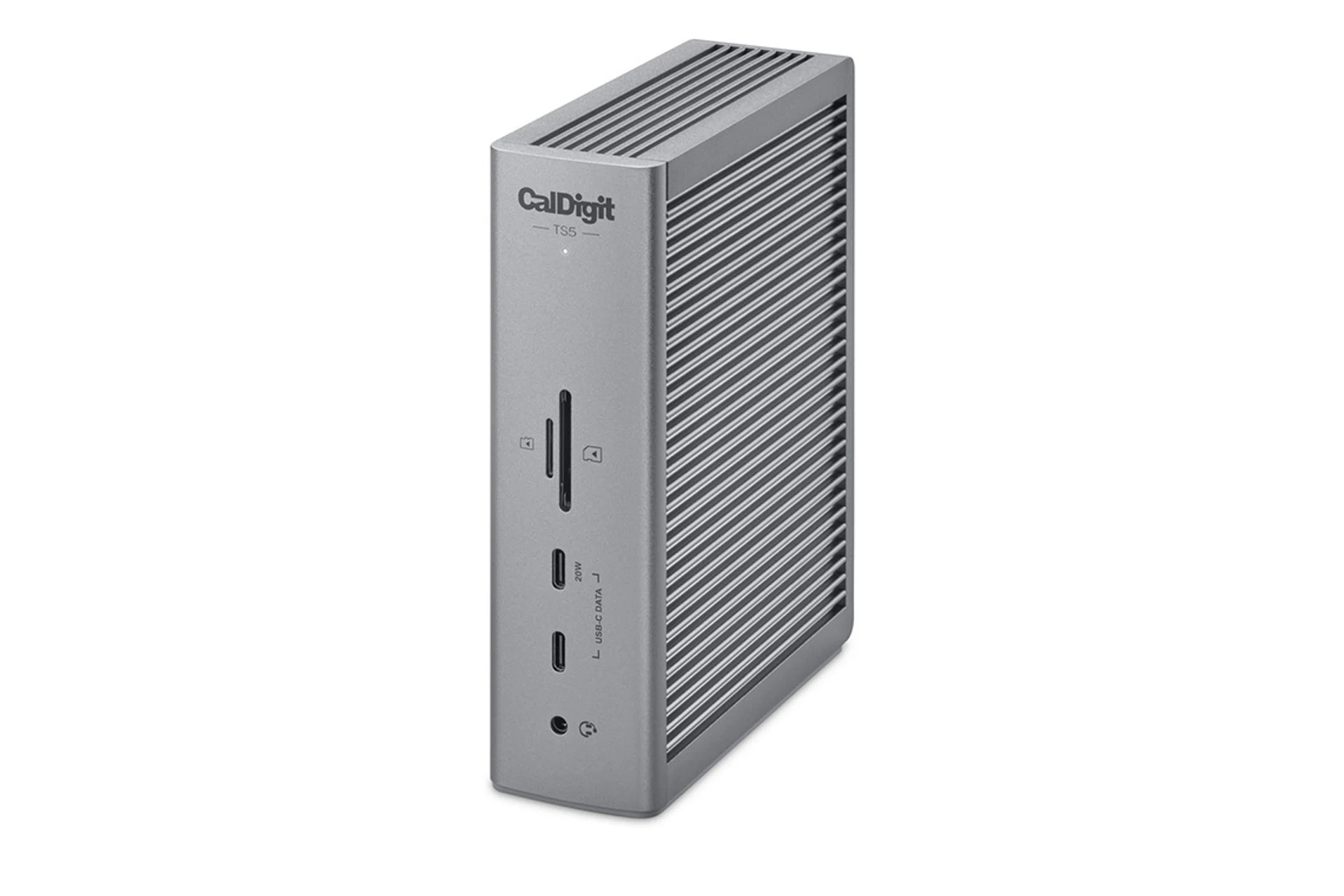
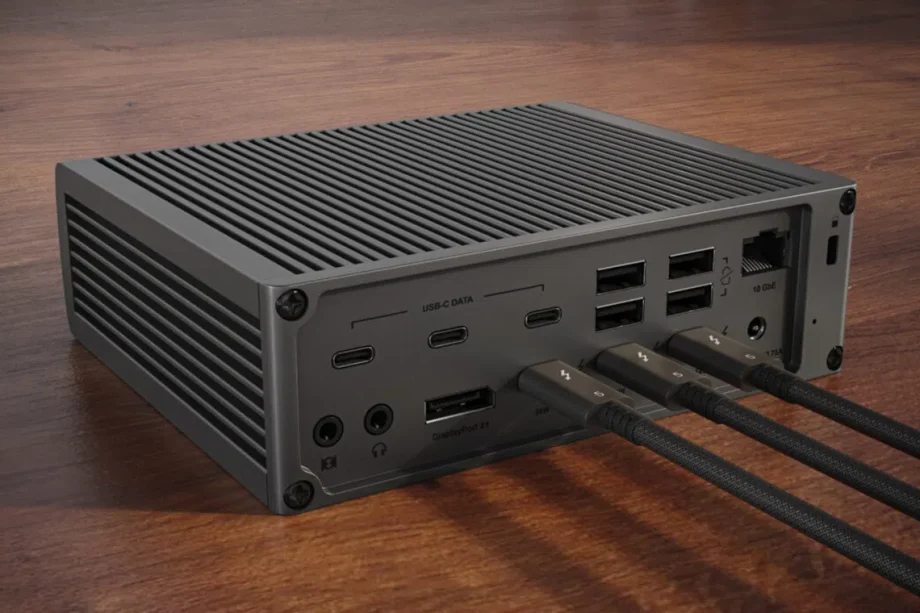
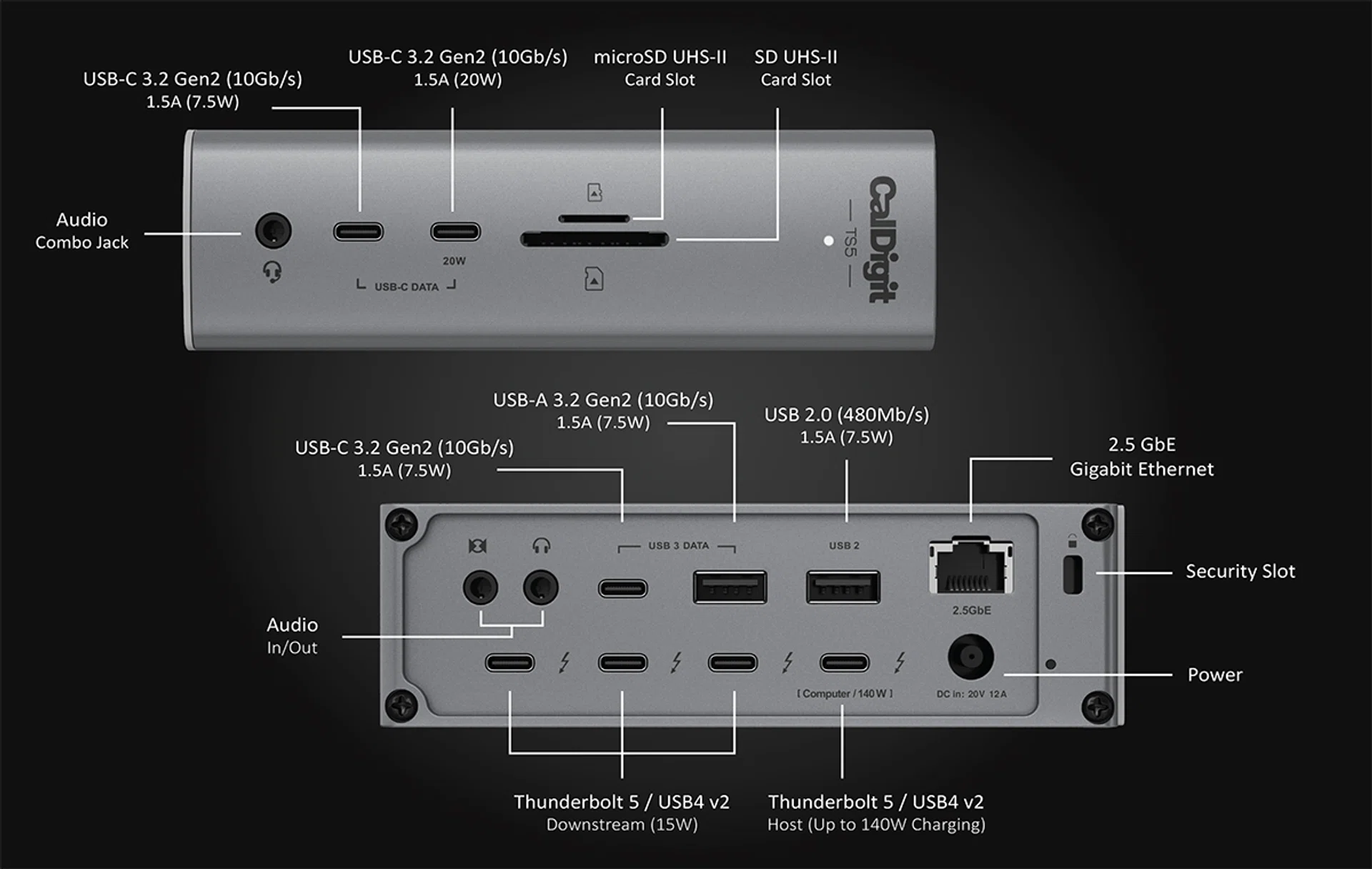
Some Thunderbolt 5 docks (like the CalDigit TS5 here) contain more than just Thunderbolt ports.

Image: CalDigit

In addition to getting the usual Thunderbolt 5 ports, the more expensive docks will often include other ports, including Ethernet, audio in/out and for some, even an M.2 slot, acting as both a dock and an external SSD enclosure. You may also find an SD, microSD, or TF card slot on some of these docks, reinforcing their usefulness for photo-editing and video production.

Many Thunderbolt 5 docks also have USB ports that support 10Gbps transfers, so even your non Thunderbolt/USB4 enabled devices can find some use out of them. Some dock manufacturers may also enable charging on these peripheral USB ports, which is useful for plugging in either your phone, earbuds or cameras that support quick charging via USB Power Delivery.

Looking for a Thunderbolt 5 dock? Here’s where to start

Anker Prime TB5

$519.90

Anker Prime TB5

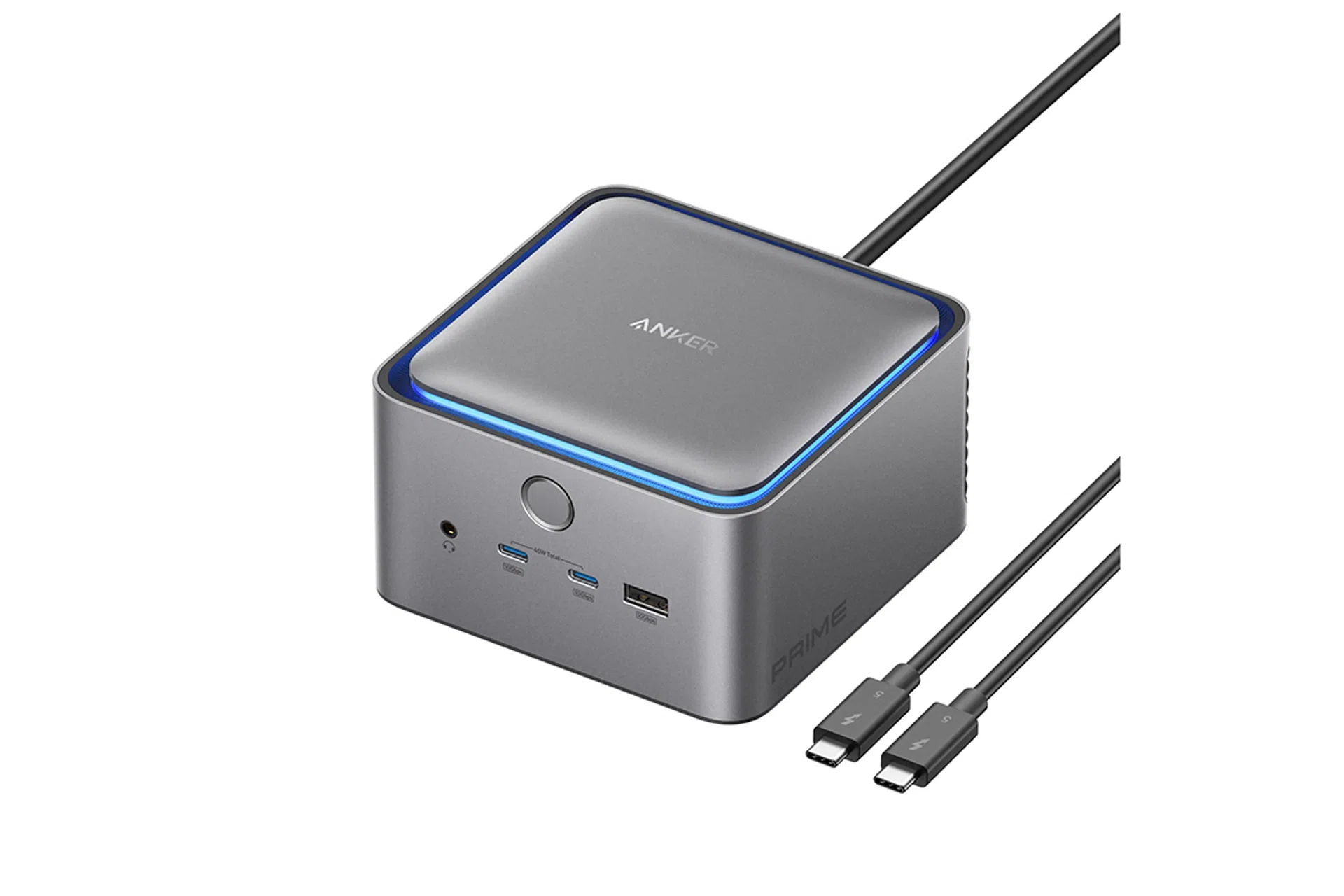
Anker Prime TB5.

Image: Anker

The Anker Prime TB5 is a 14-in-1 dock that features two downstream Thunderbolt 5 ports, five USB ports capable of 10Gbps speeds (two Type-A and three Type-C), and also includes a HDMI 2.1 port, which is somewhat rare amongst Thunderbolt 5 docks. It does have a dedicated DP 2.1 port as well, but only one of either the HDMI or DP ports can be used at a time. The two USB-C ports on the front are also capable of 45W charging, so they’re well-placed to plug your phone into for charging.

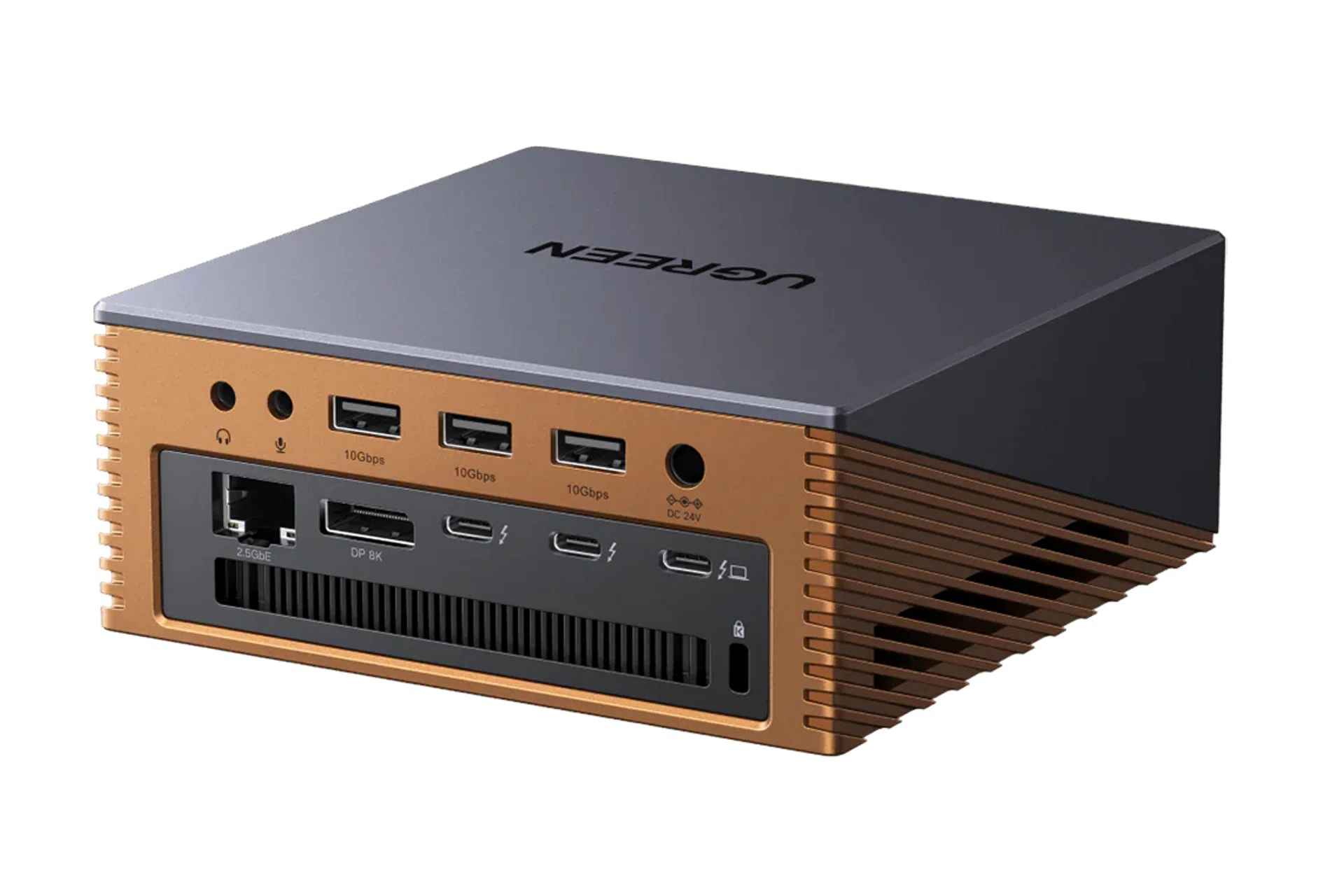
Ugreen Revodok Maxidok 17-in-1 Thunderbolt 5 Docking Station

$650

Ugreen Revodok Maxidok 17-in-1 Thunderbolt 5 Docking Station

Ugreen Revodok Maxidok 17-in-1 Thunderbolt 5 Docking Station.

Image: Ugreen

This is a Thunderbolt 5 dock with 17 ports in total, and that’s counting the M.2 slot, which makes the Maxidok an SSD enclosure alongside a docking station. Apart from that, it also supports two Thunderbolt 5 downstream ports, and a total of six USB 10Gbps ports. This is also another dock that offers USB-C charging via the ports on the front, though in this case, it offers 60W charging.

CalDigit TS5

S$599

CalDigit TS5

CalDigit TS5.

Image: CalDigit

This is a pretty standard kit as far as Thunderbolt 5 docks go – three downstream Thunderbolt ports, 2.5Gbps ethernet, SD and microSD UHS-II card slots, and a slate of USB ports. On that last point though, take note that one of the USB Type-A ports on the back is USB 2.0 only. The rest of them support 10Gbps transfer speeds, and one of the USB-C ports on the front also supports 20W charging. Oddly enough, you can also find both an audio combo jack on the front, as well as separate audio in and out ports on the back.

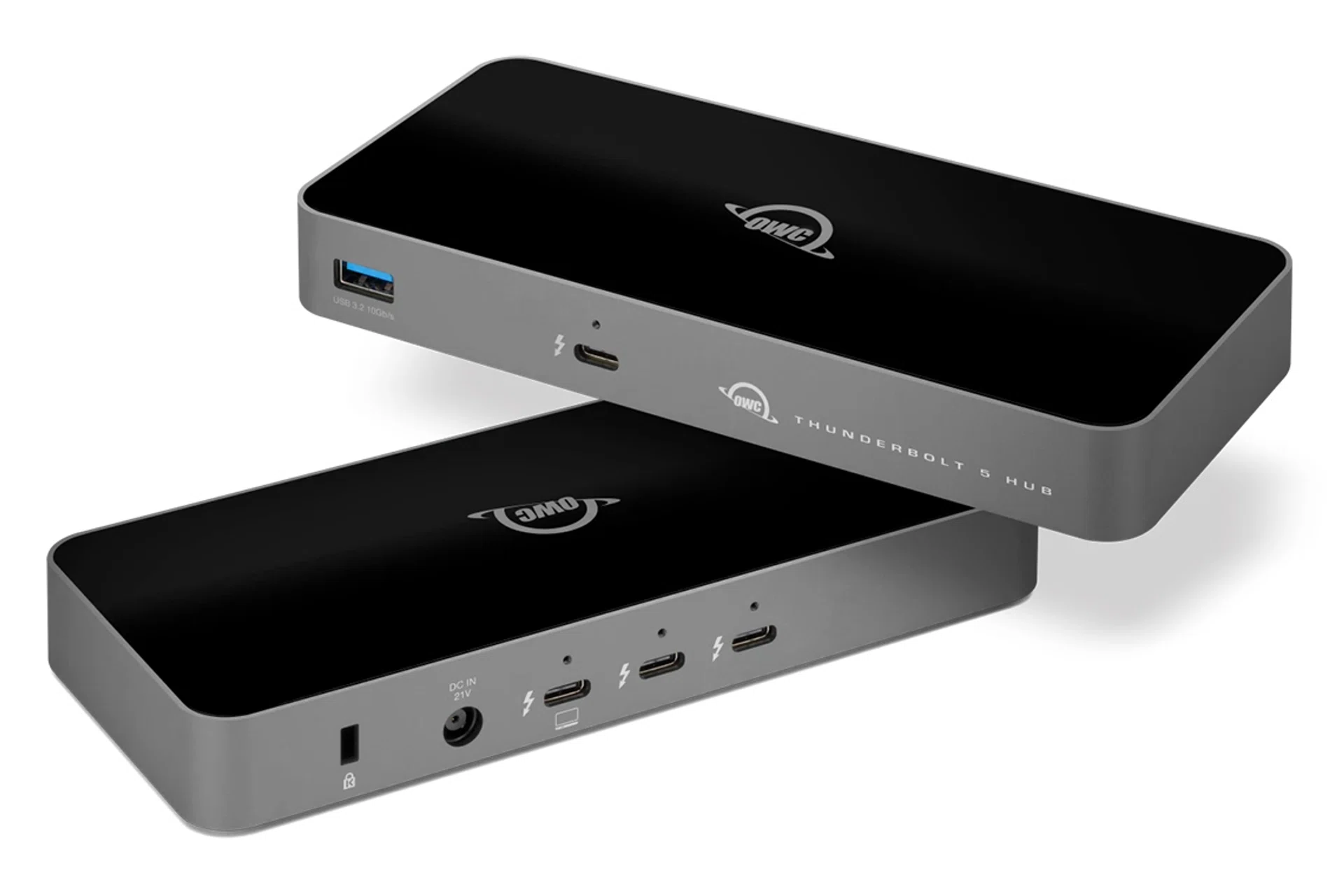
OWC Thunderbolt 5 Hub

$335.02

OWC Thunderbolt 5 Hub

OWC Thunderbolt 5 Hub.

Image: OWC

This dock is a bit more spartan compared to the other ones on this list. Despite this, OWC Thunderbolt 5 Hub still has room for three Thunderbolt 5 downstream ports, so if you purely want a dock just to handle display output and maybe one external SSD, this may be the most affordable way to do it. As a consolation for shaving off all the extraneous ports, the Thunderbolt 5 Hub also throws in a single 10Gbps USB Type-A port.

Razer Thunderbolt 5 Dock Chroma

$619

Razer Thunderbolt 5 Dock Chroma

Razer Thunderbolt 5 Dock Chroma.

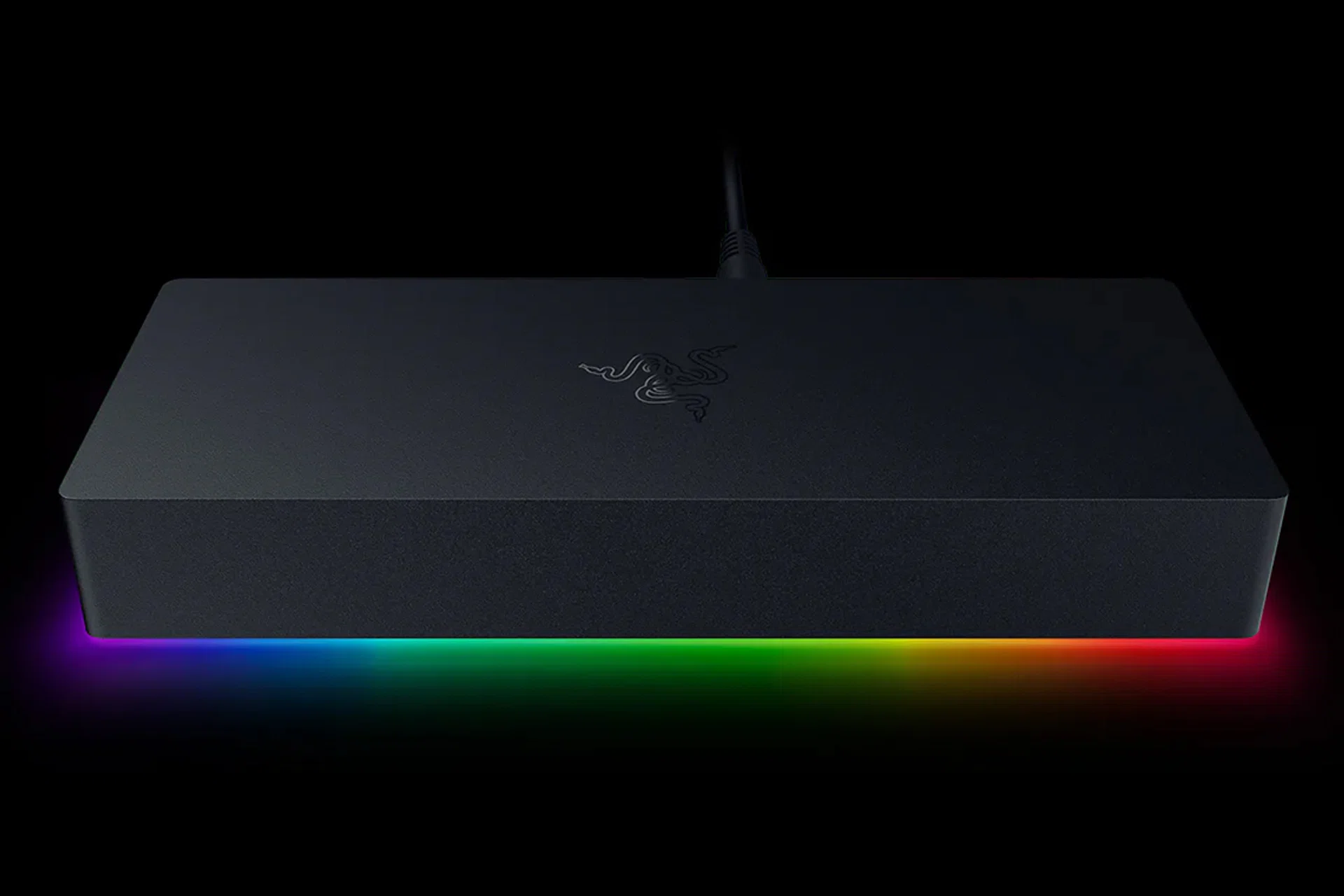
Of course, Razer has to take a punt at this. The Razer Thunderbolt 5 Dock Chroma features only one Thunderbolt downstream port, which isn’t exactly extensive, but it does make up for it with three USB 3.2 ports (two Type-A and one Type-C) as well as an M.2 slot, so it’s another docking station that can act as an external SSD enclosure. There is an ethernet port here too, but take note that it’s only 1Gbps.

Kensington SD5000T5 EQ Triple 4K Docking Station

$321.96

Kensington SD5000T5 EQ Triple 4K Docking Station

Kensington SD5000T5 EQ Triple 4K Docking Station

Image: Kensington

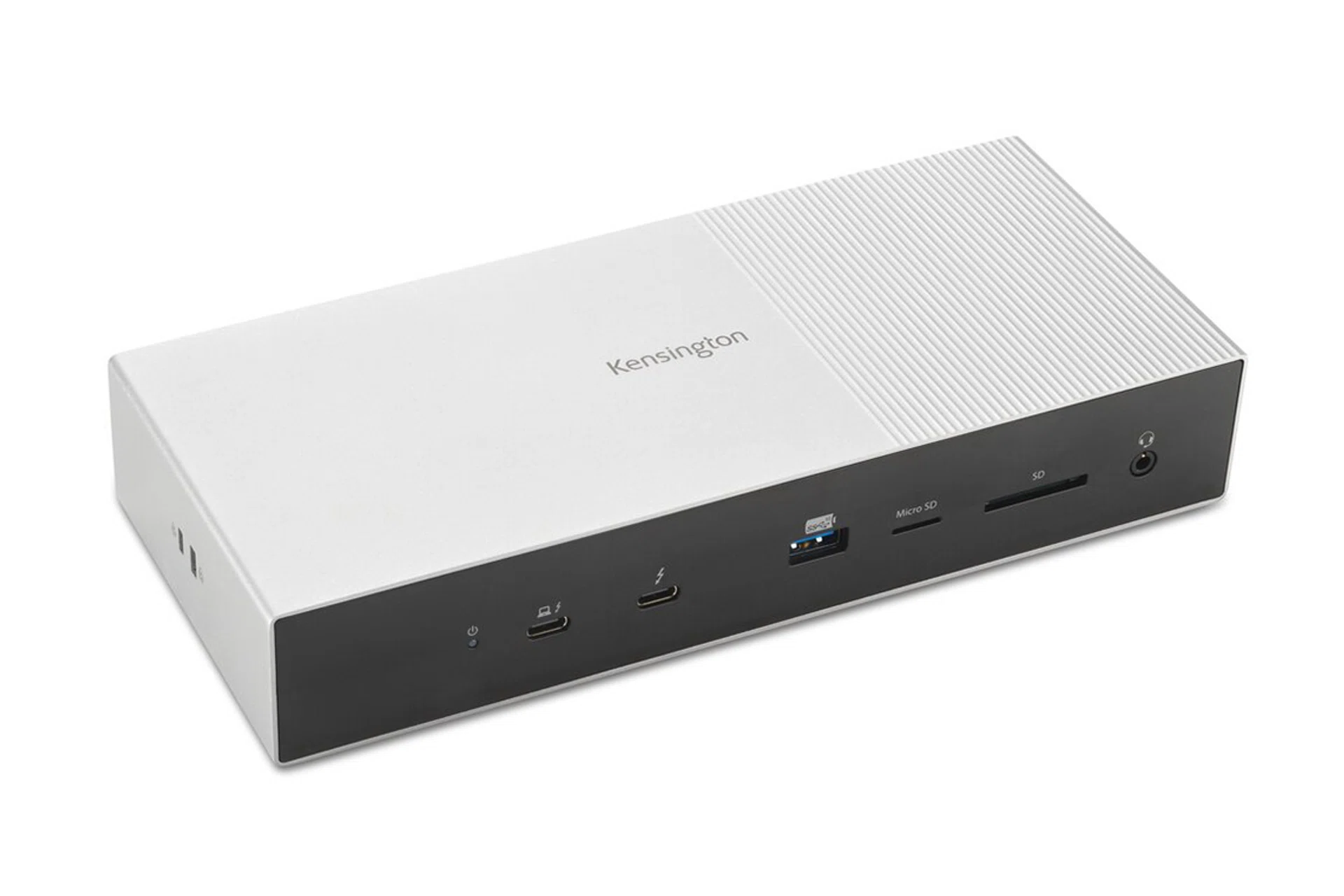
Kensington is a perennial option when it comes to USB hub accessories, and with the SD5000T5 EQ docking station, the company is bringing three downstream Thunderbolt ports, three USB 3.2 Gen 2 connectoins capable of 10Gbps, and a slim but not paltry offering of other ports including microSD and SD, 2.5Gbps Ethernet and an audio jack.

CalDigit E5

$367.92

CalDigit E5

CalDigit E5.

Image: CalDigit

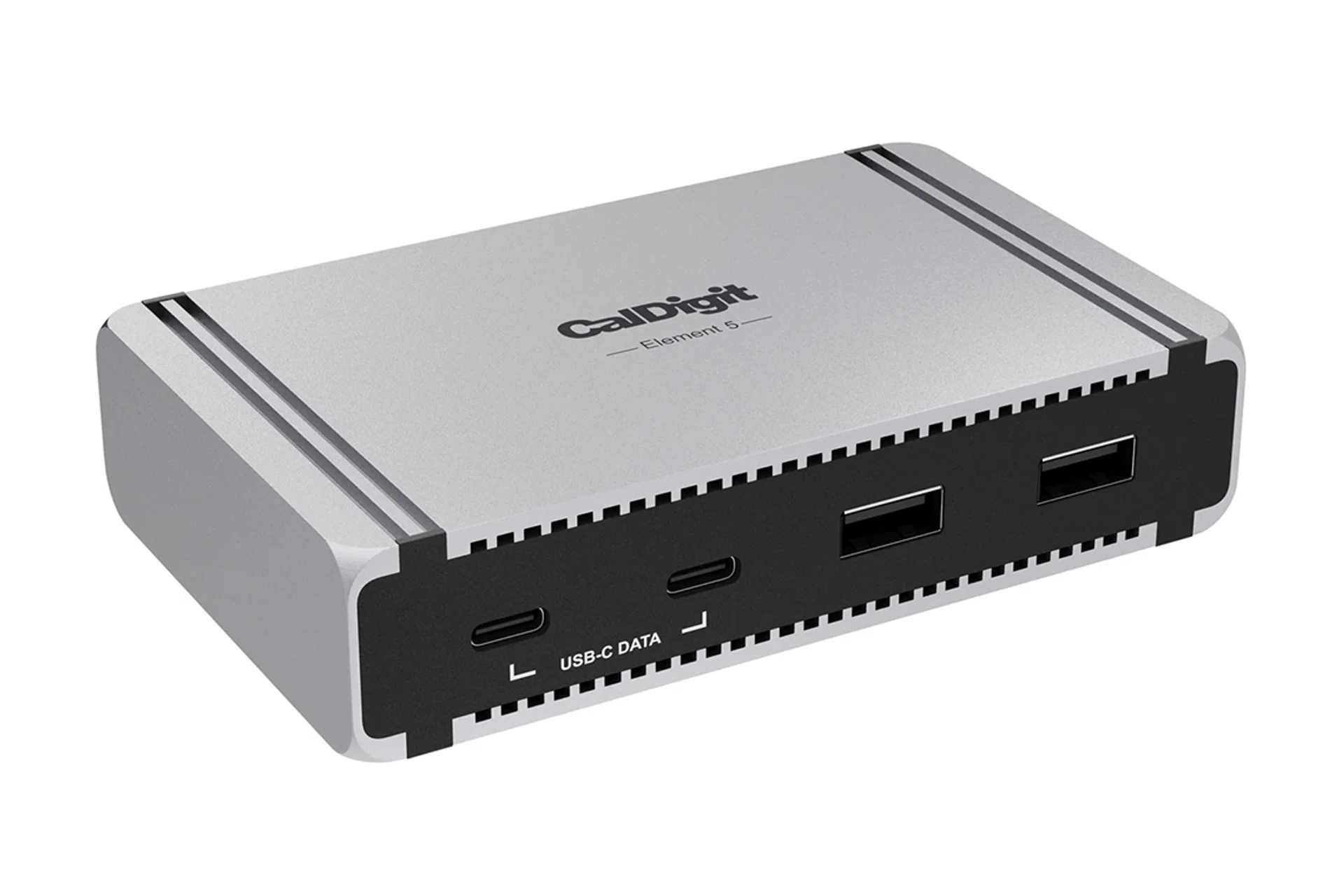
This is CalDigit’s more affordable Thunderbolt 5 offering, and as a result it loses a lot of what makes the TS5 a workhorse. However, that doesn’t mean there’s no value to be found here; the E5 features three downstream Thunderbolt 5 ports, and five USB 10Gbps ports, two of which are Type-C and three Type-A. However, you should know that the upstream port on the E5 is only capable of 90W laptop charging, and not 140W.

Don’t want or don’t need Thunderbolt 5? Check out these Thunderbolt 4 docks instead

ASUS Triple 4K Thunderbolt 4 Dock DC500

$359

ASUS Triple 4K Thunderbolt 4 Dock DC500

ASUS Triple 4K Thunderbolt 4 Dock DC500

Image: Asus

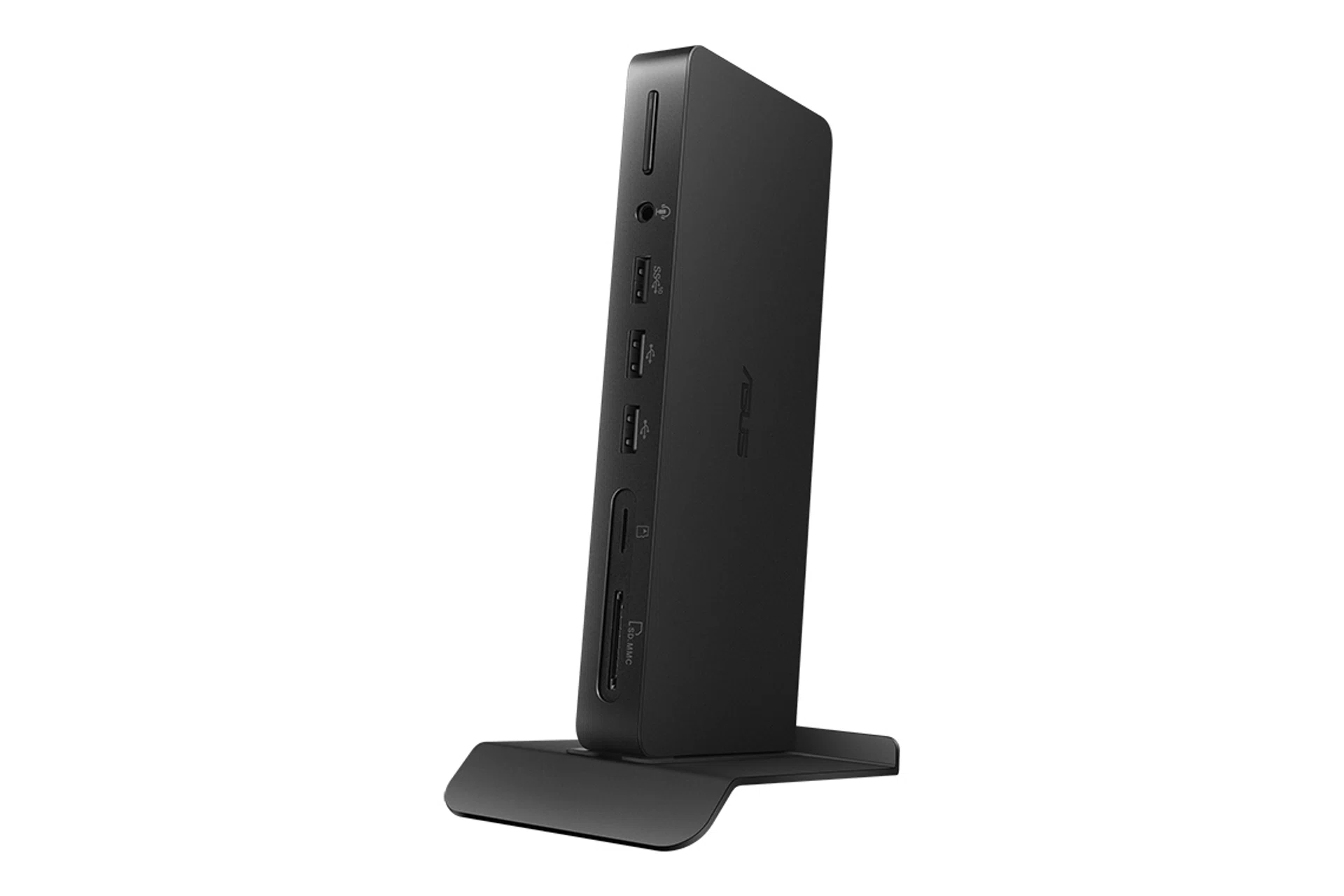
ASUS’s own Thundebrolt 4 dock admittedly only gives you one Thunderbolt downstream port, but it makes up for it by being pretty compact, measuring 185 x 80 x 21mm. It also offers you two HDMI 2.1 ports, an ethernet port, three USB Type-A ports (two USB 2.0 and one USB 3.2 Gen 2), as well as a UHS SD and UHS-II microSD card slot. It also comes with an adjustable aluminum stand that lets you prop it up vertically, or even on the edge of your desk or monitor for cable management.

Belkin Connect Thunderbolt 4 Core Hub

$289

Belkin Connect Thunderbolt 4 Core Hub

Belkin Connect Thunderbolt 4 Core Hub.

Image: Apple

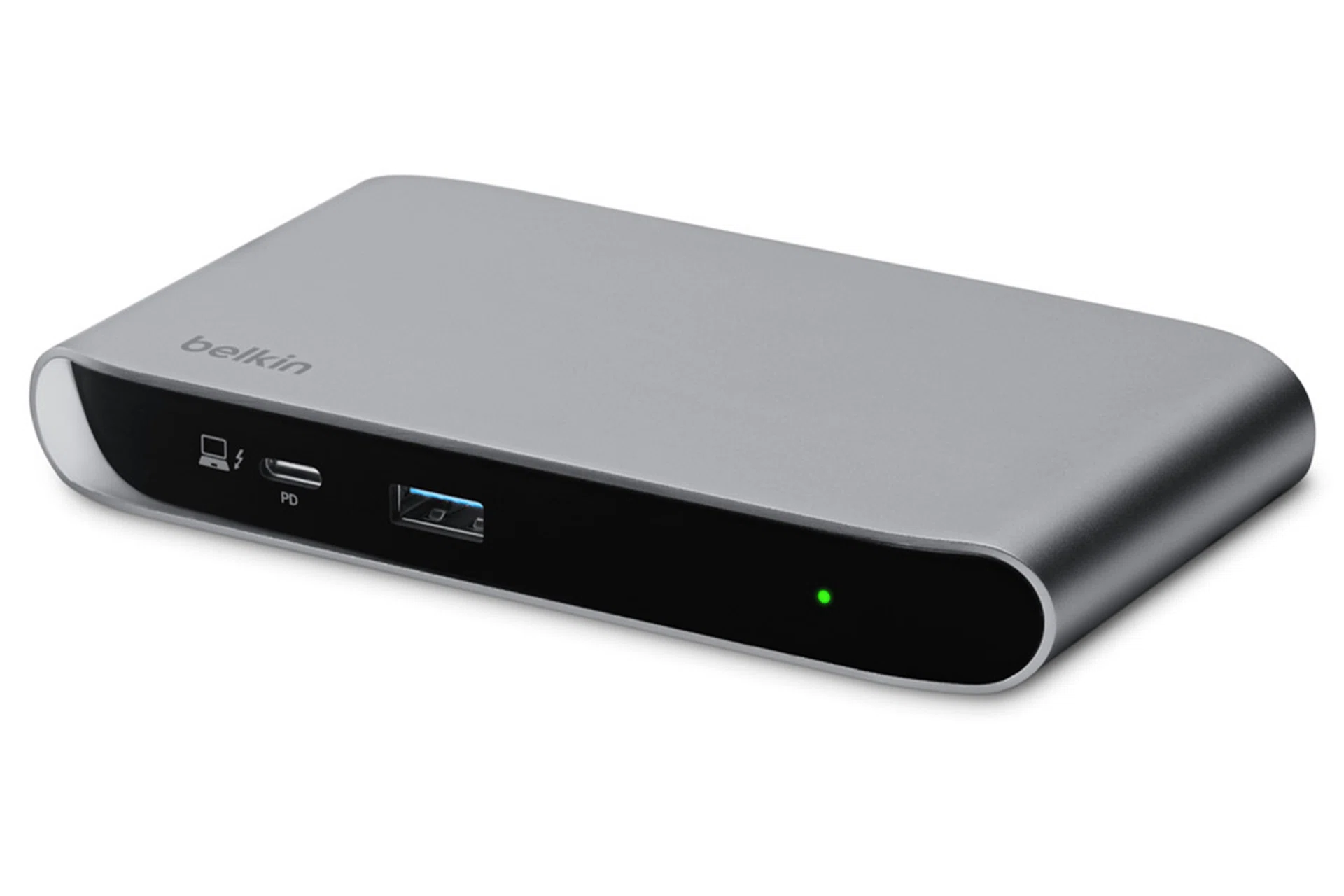
This is another Thunderbolt dock that’s pretty bare, but still gives you the essentials with three downstream Thunderbolt 4 ports, and a USB 3.2 Gen 2 Type-A port on the front alongside the upstream port. It’s also another compact dock, even more so than the ASUS, measuring 135mm x 74mm x 18mm.

Dell Pro Thunderbolt 4 Dock – WD25TB4

$272.60

Dell Pro Thunderbolt 4 Dock - WD25TB4

Dell Pro Thunderbolt 4 Dock – WD25TB4

Image: Dell

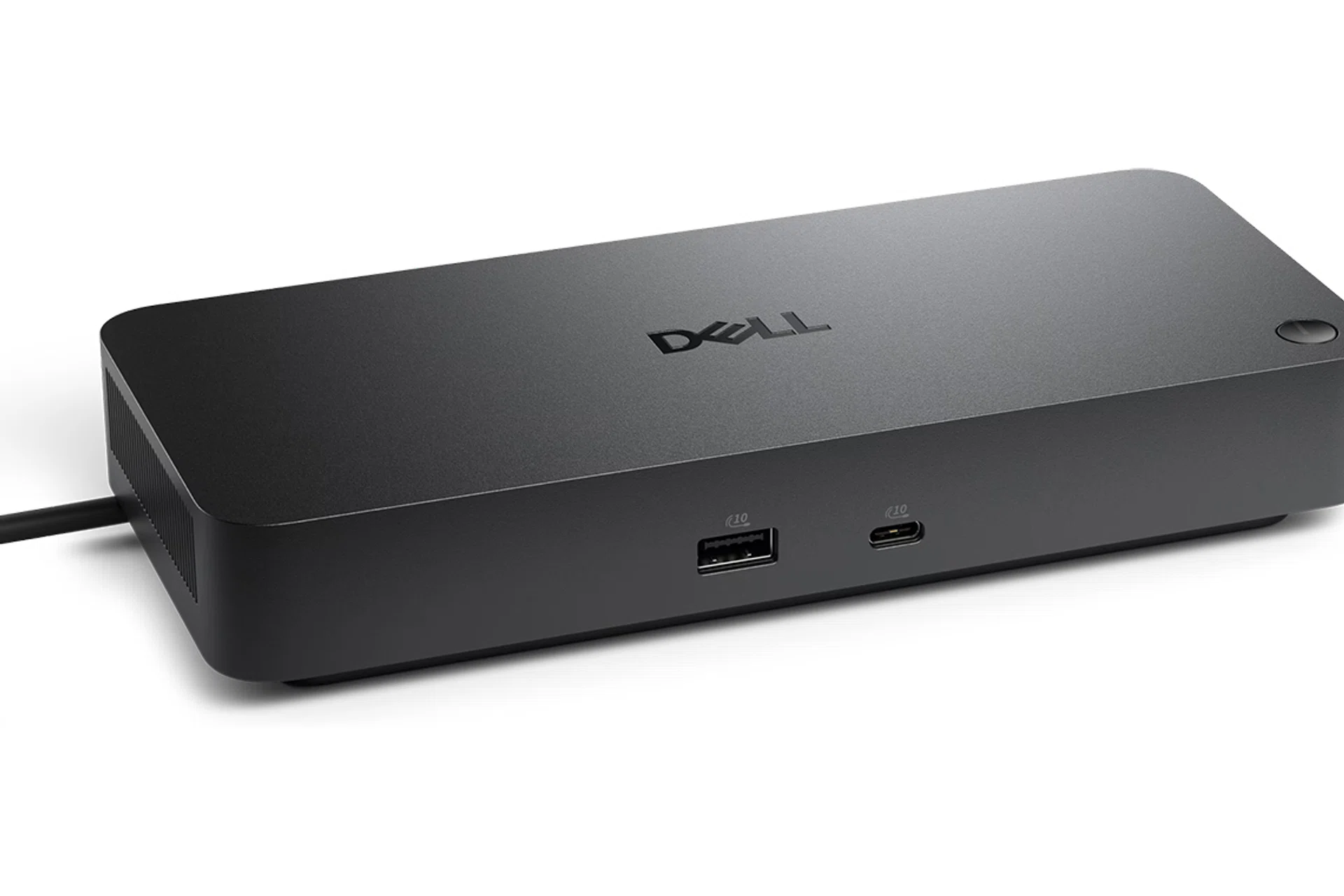
Dell’s WD25TB4 is a 13-port dock that has a notable focus on display output. You can tell by the fact that, aside from having two downstream Thunderbolt 4 ports, it also has three DP 1.4 ports – two of the standard DisplayPort shape, and one USB-C – as well as an HDMI 2.1. Including the DP-enabled USB-C port, there’s a total of six USB 3.2 Gen 2 ports capable of 10Gbps (they’re also appropriately labelled with USB-IF’s 10Gbps logo, which is not something every manufacturer does).

Our articles may contain affiliate links. If you buy through these links, we may earn a small commission.


Read Full Article At Source
Share. Save. Don't Miss The Buzz: XFacebookRedditLINETelegramWhatsAppGmail

Leave a Reply