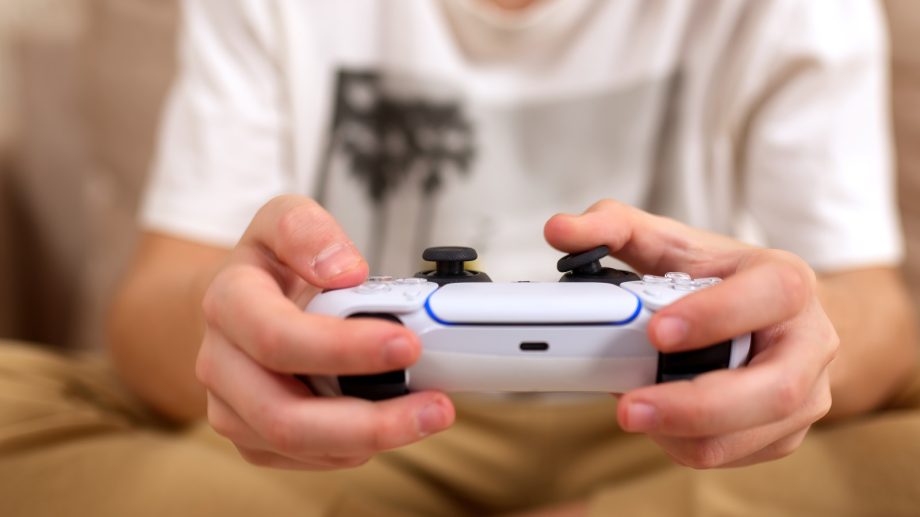
Give your controllers a good clean.
We may receive a commission on purchases made from links.
Stick drift in modern video game controllers has been a problem for years at this point. Hall Effect thumbsticks can reduce stick drift, so it’s extra annoying that neither the PS5 DualSense or the Xbox Wireless Controller uses this tech. You can easily identify stick drift if you’re not touching your controller but the in-game camera starts to pan without your input or your character/vehicle gently begins to move.
While this defect is irritating, it can be fixed in certain instances. We’ll run you through some simple cleaning tips that can help reduce stick drift on PS5 and Xbox controllers below, before breaking down why this fault occurs in the first place. One final word of caution: If your sticks are having issues, please don’t open up your controller. Instead, if the pad is still under warranty, contact Microsoft or Sony to enquire about getting your controller either repaired or replaced.
How to fix PS5 stick drift
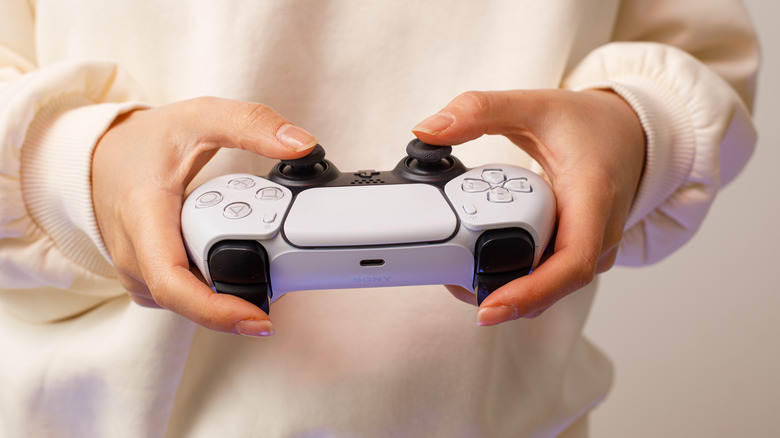
Your first port of call should be to give your DualSense a good clean. Dust, grime and the sweat from your fingers can all negatively impact your controller’s sensors. As for how you should clean your pad’s sticks, your best options are either to use a can of compressed air or a cue tip/cotton bud lightly dipped in rubbing alcohol. With the former method, ensure you only use short, intermittent sprays; as for the latter, please don’t overdue it with the alcohol. Whatever method you go for, turn your DualSense off before you attempt to clean it.
How to fix Xbox stick drift
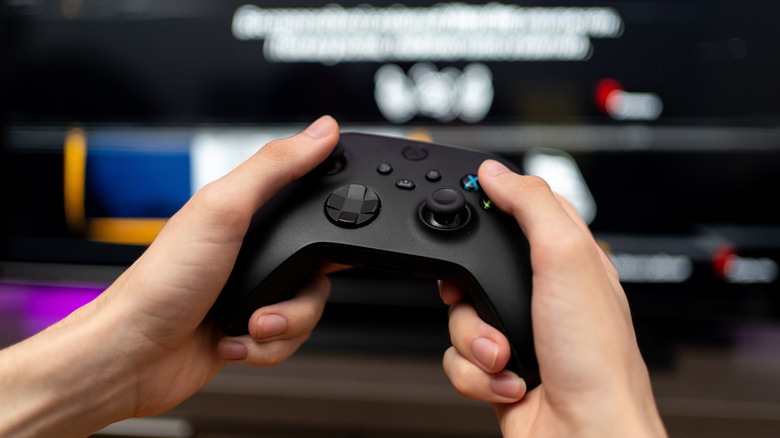
Attempting to fix a Xbox Wireless Controller that is experiencing stick drift involves the same processes as the DualSense. The cleaning methods mentioned previously should be the first things you try if you’re suffering from erratic camera or character movement due to faulty stick behavior. From our experience, the cotton bud/rubbing alcohol method works best.
As with the DualSense, it’s also worth updating your Xbox Wireless Controller’s firmware. To do this, press the Xbox button on your pad, then navigate to Profile and system > Settings > Device and connections > Accessories. Choose your controller, and if there’s a new firmware update available, install it. You should also download the Xbox Accessories app from the Xbox Store. This free software has calibration tools that allow you to adjust/test the dead zones of your controller’s sticks.
What causes stick drift?
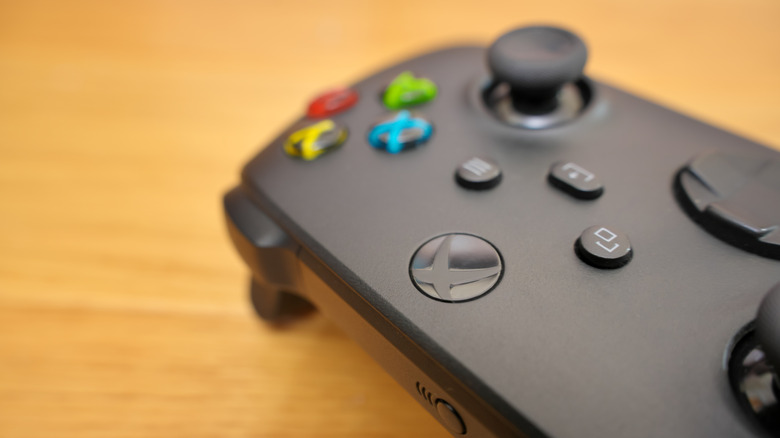
The most common cause of stick drift is simple wear and tear. The more you use your controller, the greater the chance stick drift will occur. If you’ve used your gamepad for hundreds of hours, there’s a decent chance you’ll eventually encounter this annoying defect. Controllers use devices called potentiometers to track the position of their analogue sticks, and these can wear down after heavy usage.
Accidental damage and moisture build-up can also cause stick drift. Sweat and liquid can impact the internals of your gamepad, in turn affecting its sticks. Even new controllers can be hit with stick drift. You might end up being unlucky by picking up a pad that has calibration problems straight out of the box due to manufacturing issues. Should you find your sticks are playing up and your controller is still under warranty, definitely try to get it repaired or replaced by Microsoft or Sony.
Read Full Article At Source