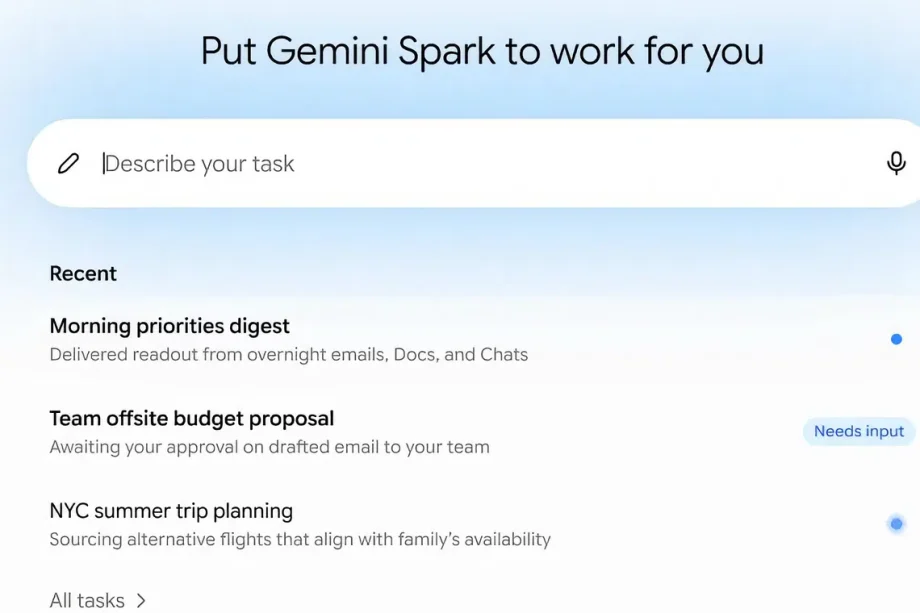
Most people open Gemini Spark, type something into it the way they would type into a chatbot, and come away unimpressed. That is the wrong mental model. Spark is not a better chat window. It is closer to hiring an assistant who works overnight, and the difference between a useful result and a useless one is almost entirely in how you brief it.
This guide walks through what Spark is, how to set up your first task, the three building blocks everything else is made of, the prompt pattern Google’s own examples all follow, and the four things Spark still cannot do.
First, do you have it?
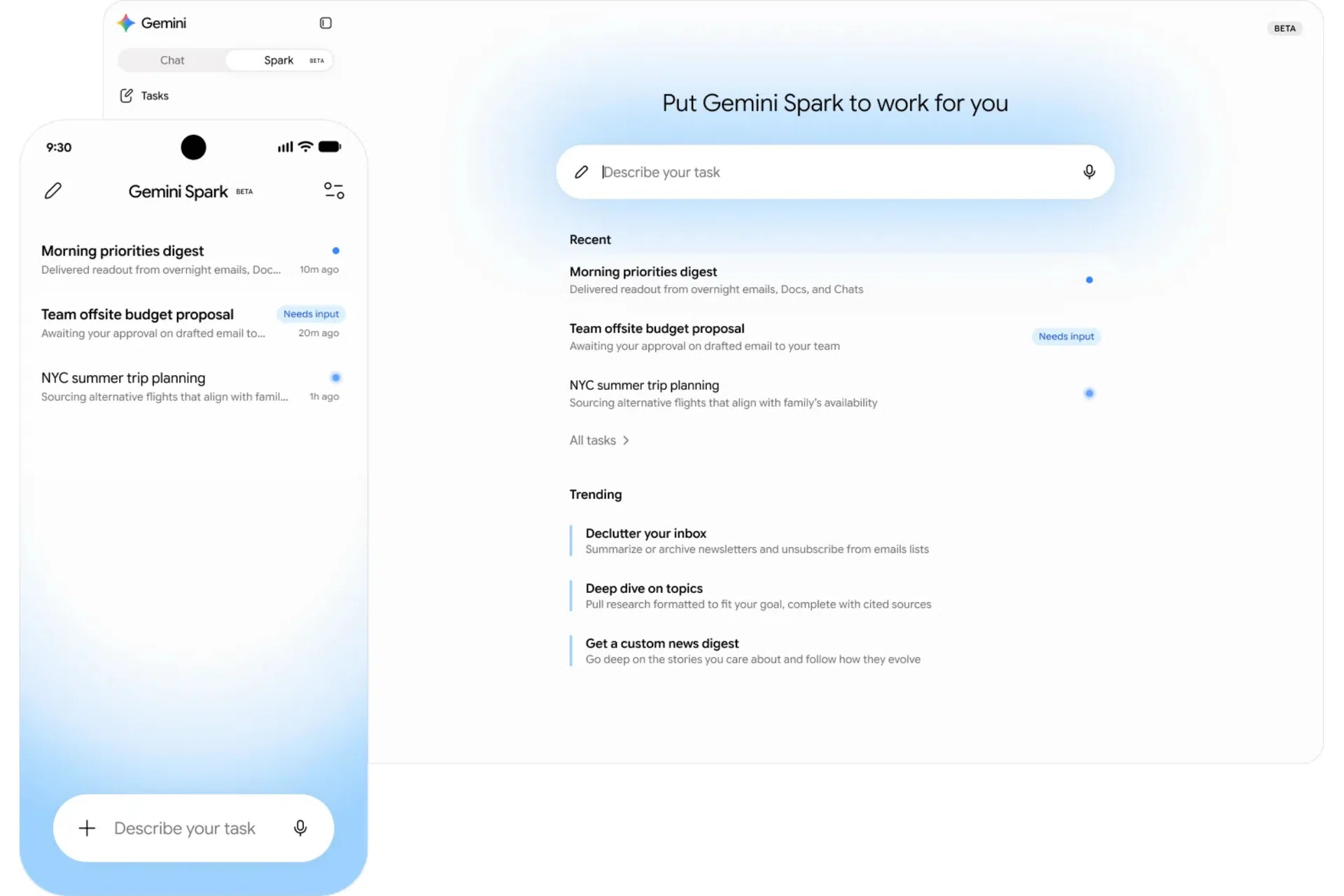
How to get started with Gemini Spark.
Photo: Google
Spark is already live for Google AI Ultra subscribers across Asia Pacific, and is rolling out to Pro subscribers in Singapore over the coming weeks. It works in English and local languages.
It runs on Google’s cloud rather than your device, which is the detail that makes the rest of it possible. Spark keeps working when your laptop is closed and your phone is locked. It integrates with Gmail, Drive, Docs, Sheets and Calendar natively, with no setup required, and it is available on the web and on Mac desktop.
Under the bonnet, it runs on Gemini 3.6 Flash, paired with the same engine behind the Antigravity harness, Google’s coding agent platform. That pairing is why Spark can keep working on a single job for twenty or thirty minutes instead of giving up after one reply. Spark first appeared at Google I/O in May, running on Gemini 3.5 Flash.
When to use Spark instead of ordinary Gemini
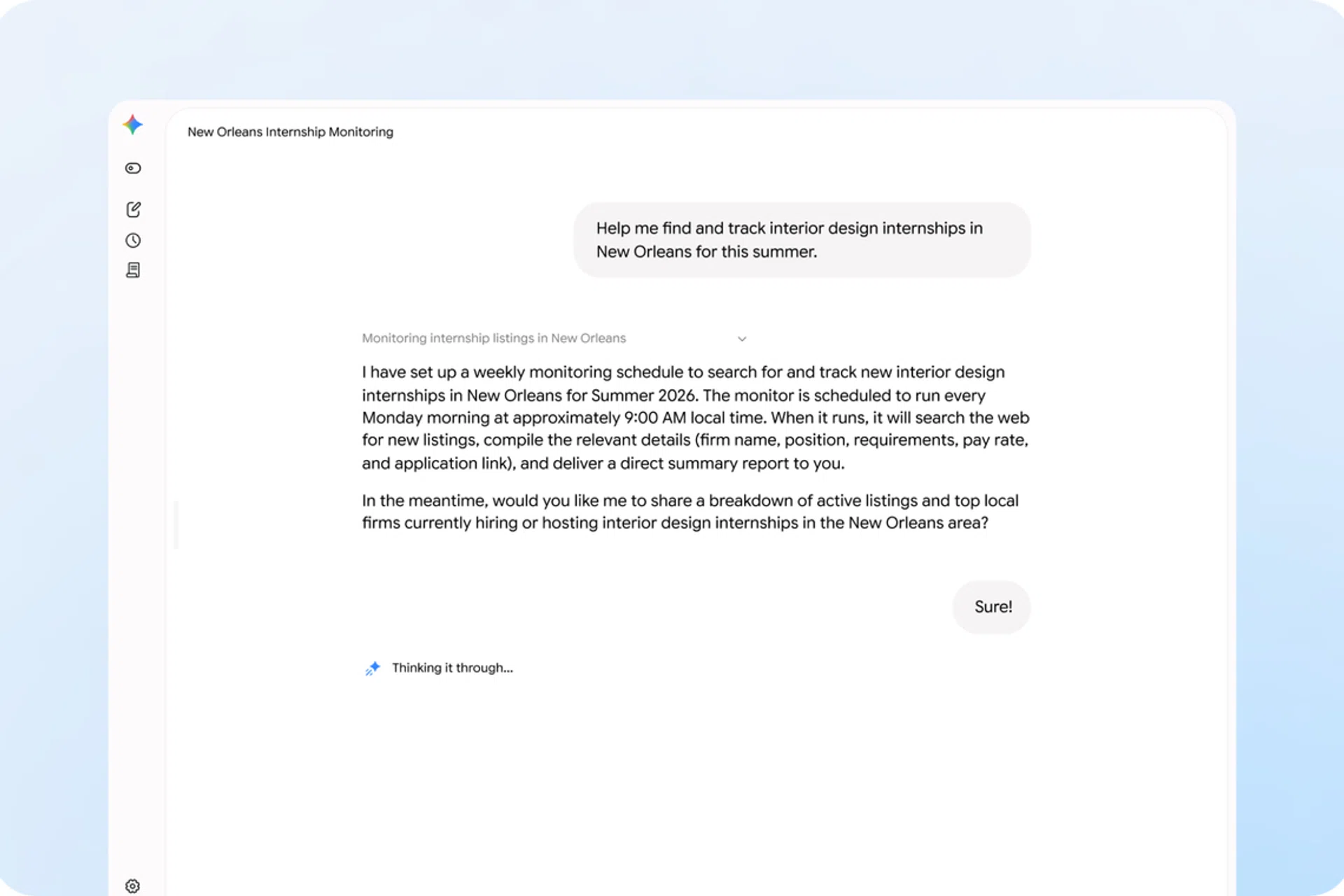
Knowing when to use Spark is important.
Photo: Google
A quick rule of thumb, because this trips up most new users.
Use ordinary Gemini chat when you want an answer now, when you are thinking out loud, or when you want to go back and forth on an idea. It is a conversation.
Use Spark when the job has any of these characteristics:
- It will take longer than a single reply, such as producing a long document or a full presentation
- It needs to happen repeatedly, on a schedule
- It needs to happen in response to something, such as an email arriving
- It involves acting on your own Gmail, Drive, Docs, Sheets or Calendar
- It needs a browser to go and do something on a website
Adam Coimbra, Director of Product Management on the Gemini team, calls this category “digital laundry”, the repetitive work that pulls attention away from what actually matters.
“Just some task that kind of is a distraction of your attention from the more important things,” he said, “that are where you actually want to be able to focus.”
Getting started
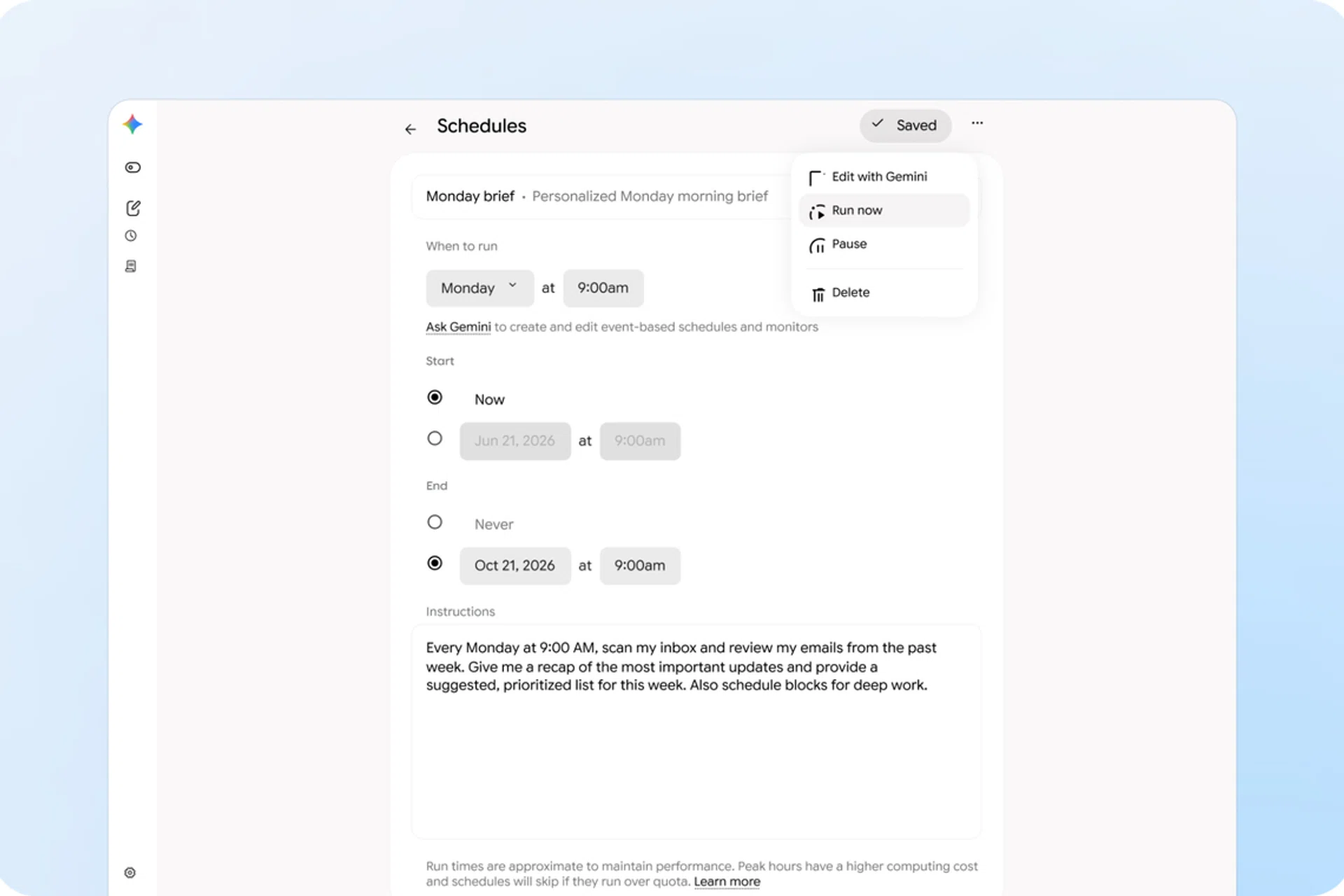
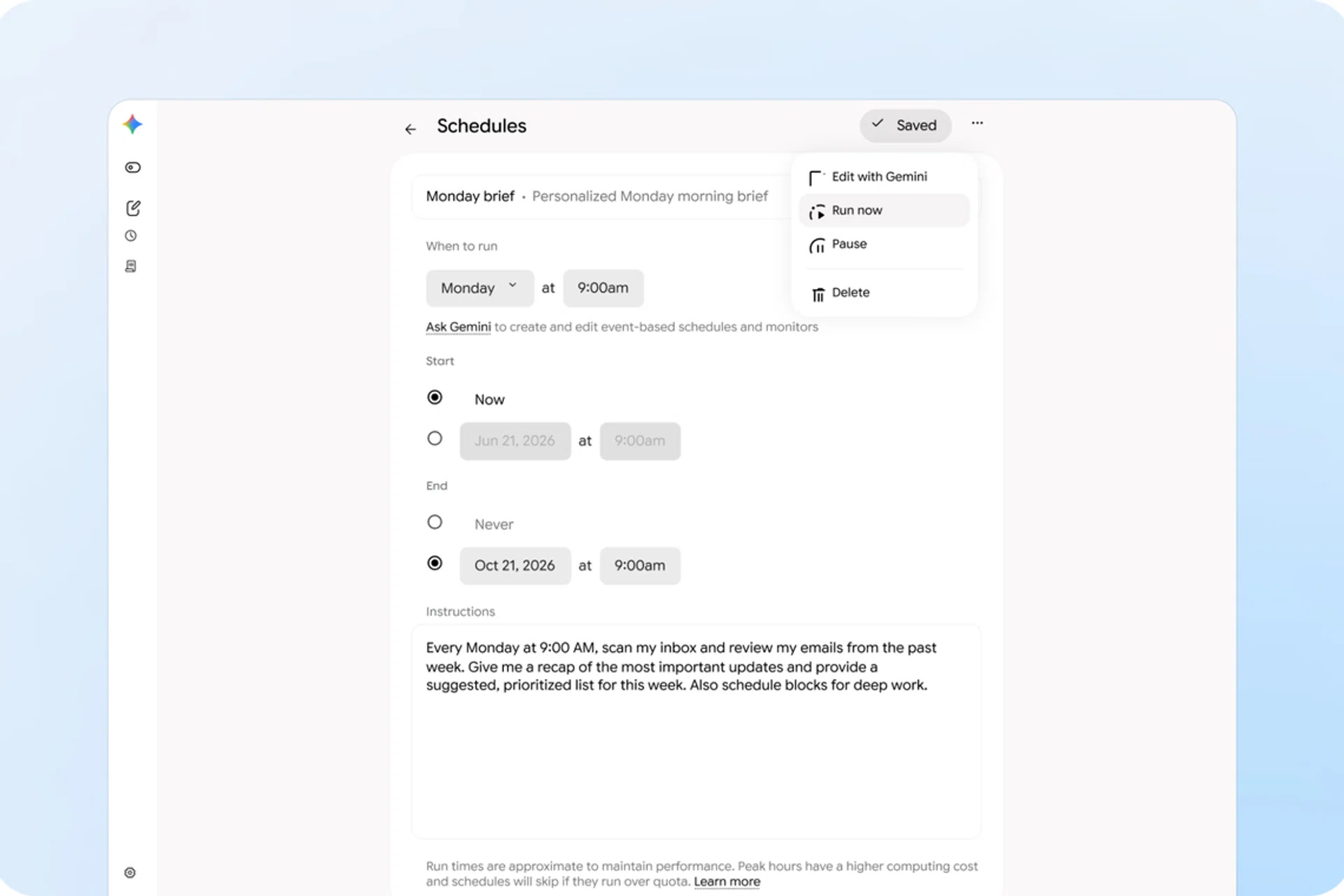
Getting Spark to run on a Schedule.
Photo: Google
Go to gemini.google.com and look for the switch to Spark. Flipping it changes the interface from a chat box to a task dashboard, with separate sections for schedules and skills.
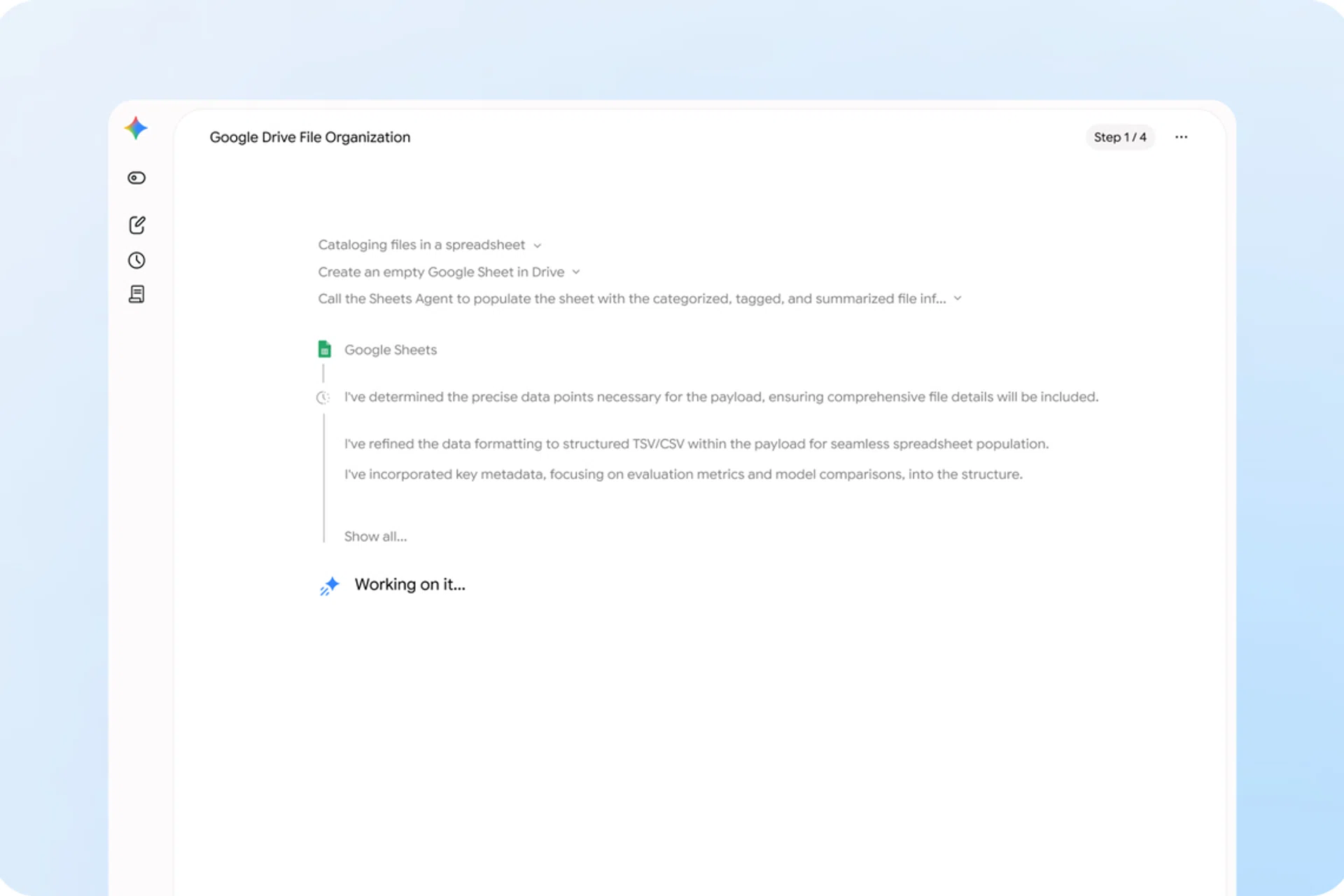
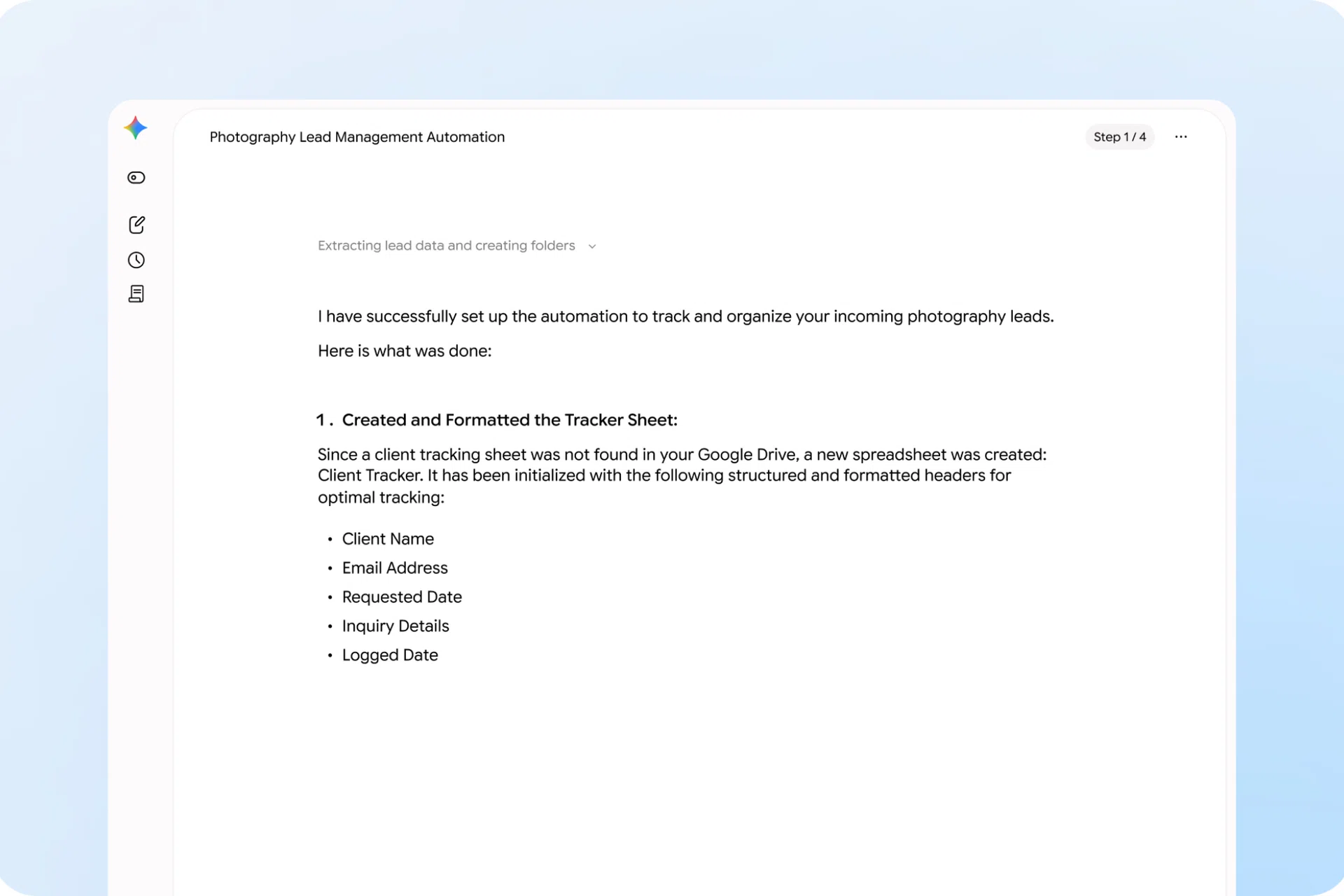
That dashboard is home. Every job you give Spark appears there as a task, and you can open any task to watch its reasoning as it works.
Everything in Spark is built around the following three things. Learn these and the rest follows:
- Tasks are the basic unit. One task is one goal Spark is working on for you. Every time you ask Spark to do something, you are creating a task.
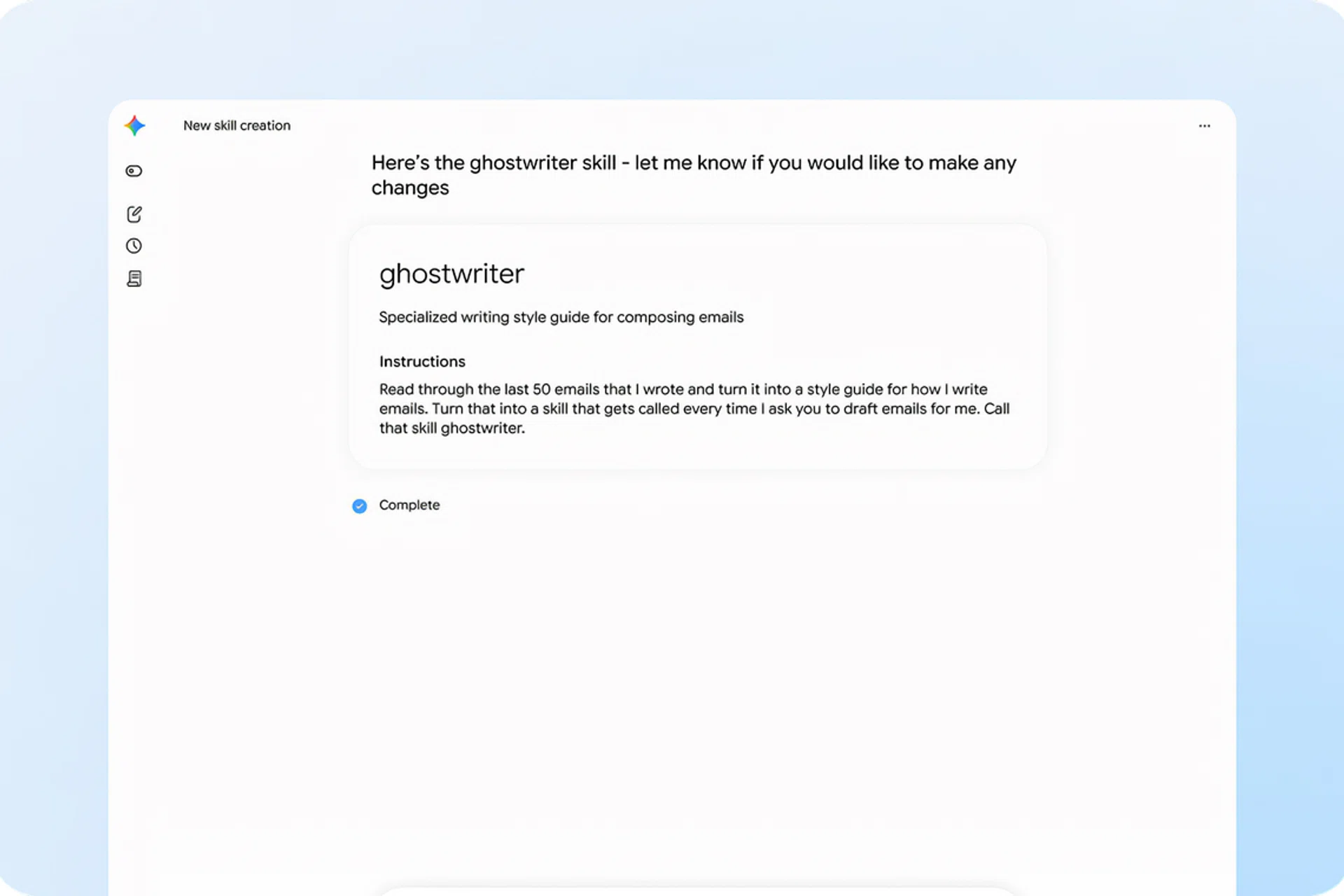
- Skills are how you teach Spark to behave. Writing style, formatting preferences, the way you want a particular type of job handled. You can write a skill yourself, or you can simply tell Spark to read your existing emails and build one based on how you already write.
- Schedules are the proactive layer, and they come in two flavours. Time-based schedules run at a set moment, such as every Friday at 8am. Event-based schedules run when something happens, such as an email arriving on a particular topic.
The real power comes from combining them, which we will get to.
How to write a Spark prompt that works
Handily, we have some examples from Google to get started properly. If you examine them, they nearly all follow the same four-part shape. To get your prompt to work properly, take note of the following:
Read Full Article At Source