Top 10 must-have apps for your new Mac

Top 10 must-have apps for your new Mac


Just got a new Mac? Together, Mac and macOS make for a winning combination. The native apps of macOS make Macs exceedingly capable machines. However, they can’t do everything, and you’ll need third-party apps to get the best out of your Mac. 

Whether you are a student, developer, creative professional, or just someone who is trying to browse the web to find recipes, the right app can help speed up your workflow or even turn a frustrating afternoon into a truly productive one. Here are ten apps that can transform your Mac experience.

  1. 1. Maccy
  2. 2. Obsidian
  3. 3. Hidden Bar
  4. 4. Shottr
  5. 5. LaunchBar
  6. 6. Rectangle
  7. 7. FineTune
  8. 8. Consul
  9. 9. BetterDisplay
  10. 10. Setapp

1. Maccy

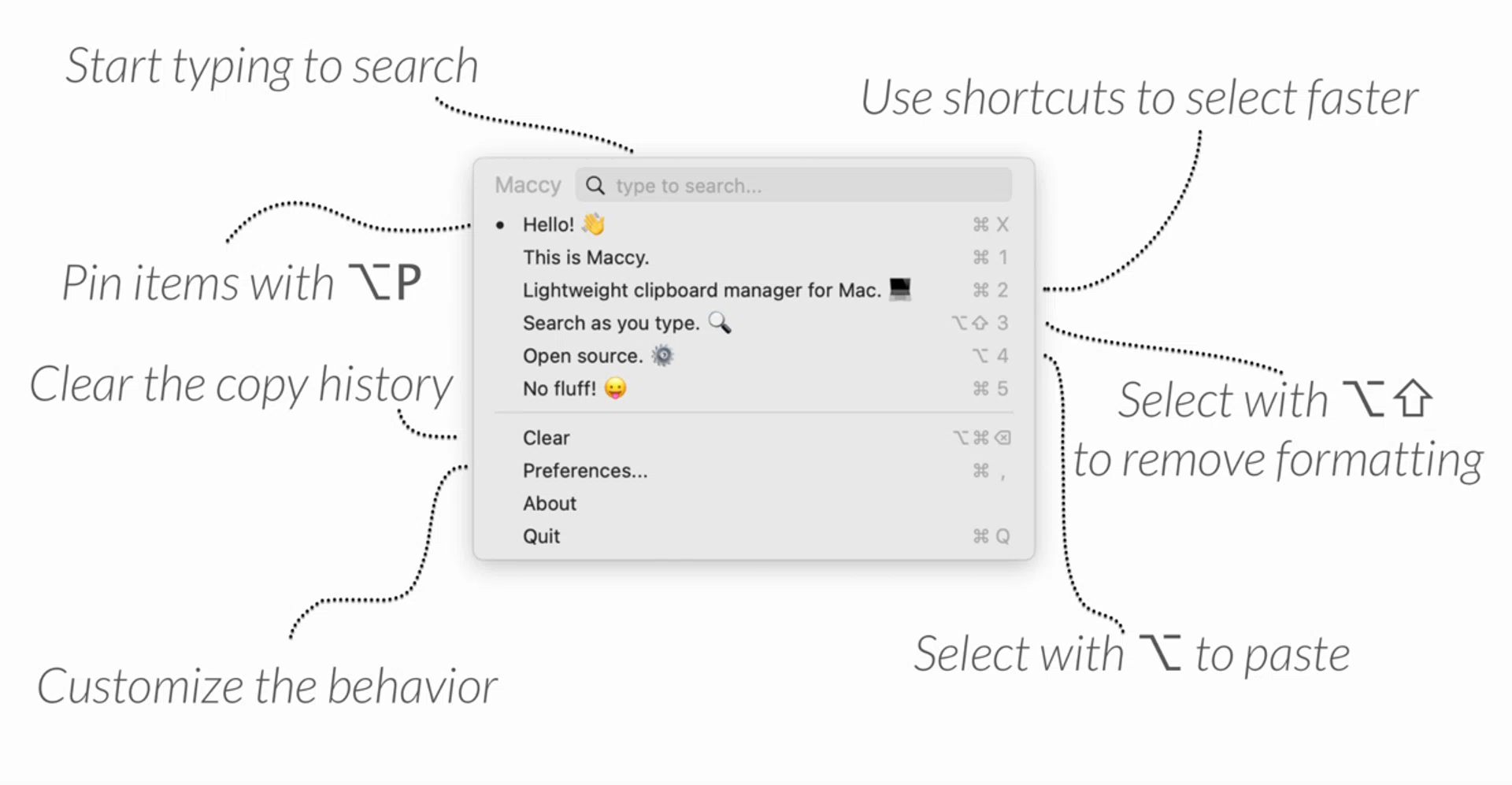
All functions of the Maccy application.

Maccy comes in rather useful when you have to paste in more than one piece of information.

Copying and pasting is one of the most basic functions on any computer, yet macOS still only remembers your most recently copied item. That becomes frustrating when you are juggling multiple links, chunks of text, passwords, images, or even just basic phone numbers. 

Maccy solves this by storing your clipboard history and letting you quickly retrieve older copied items through a keyboard shortcut that can be customised by the user. Upon reaching the menu, it has a search functionality, pinned clipboard items, and options to ignore sensitive copied content such as passwords. All in all, the app is lightweight and intuitive, so it doesn’t feel like you’re doing extra work just to reach for your clipboard history.

Whether it’s students working on research papers, content creators managing multiple links, or office workers constantly copying information between spreadsheets and documents, Maccy eliminates the repetitive back-and-forth of re-copying the same content.

Maccy can be installed for free if you, head over to its website here.

2. Obsidian
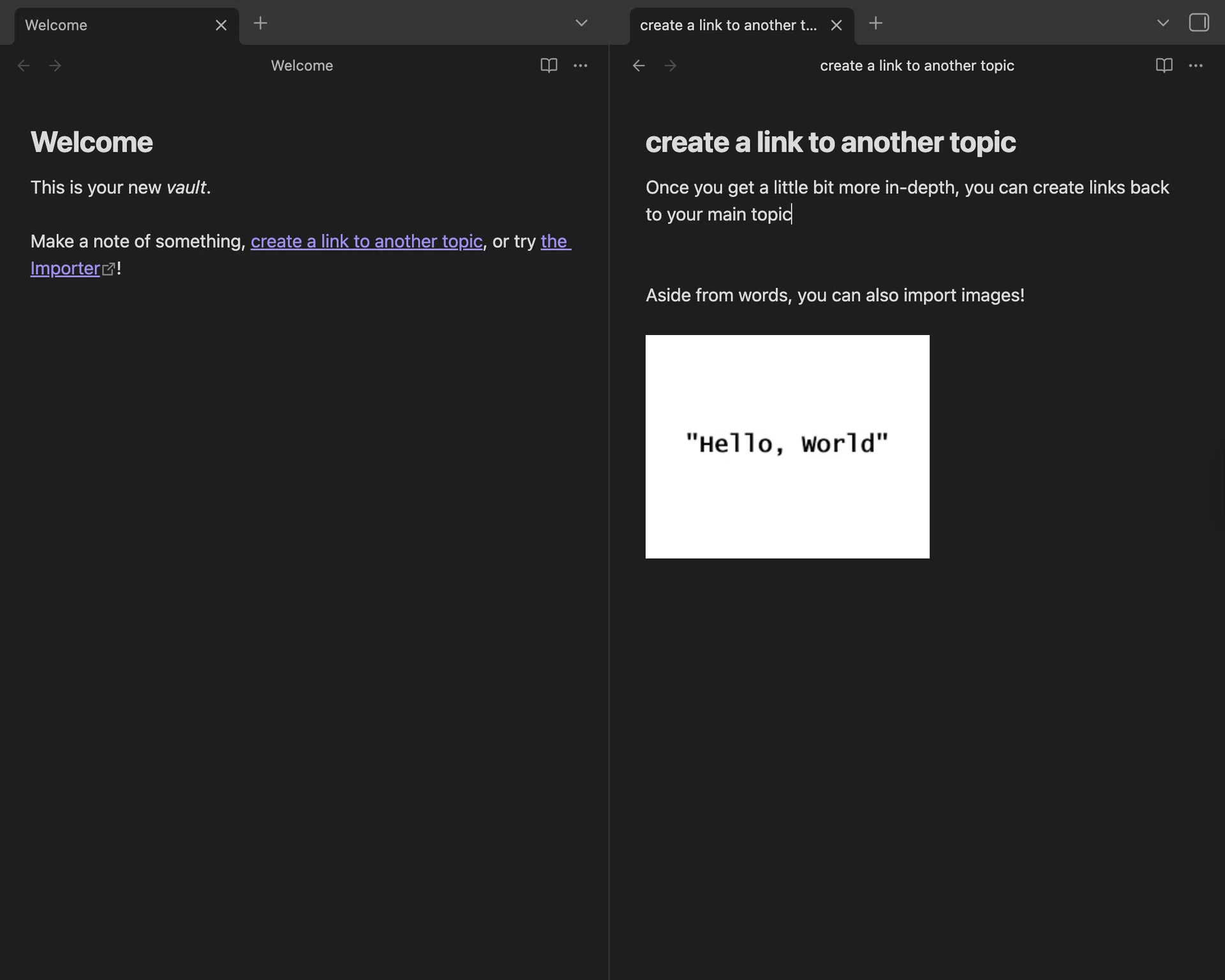
Screengrab of Obsidian app being used as a notetaker function

Aside from the basic note-taking function using the app, you can also use Obsidian as a planner.

Photo: HWZ

Most note-taking apps are either too simple or too restrictive. Obsidian sits comfortably in the middle, giving users a blank canvas that can be heavily customised.

At its core, Obsidian stores notes as local markdown files, which means your information is not locked behind a cloud service. What makes it unique is its bidirectional linking system. Users can connect ideas, projects, lecture notes, meeting minutes, or research references in a way that mirrors how people naturally think. It comes in pretty useful when there is a large meeting topic that is being discussed with multiple key subjects being talked about.

Aside from being a notetaker, there is also a plugin ecosystem. You can turn Obsidian into a task manager, writing dashboard, study planner, or even a personal wiki. For users who enjoy building highly personalised workflows, few apps offer this level of flexibility.

Obsidian is free and can be installed here.

3. Hidden Bar
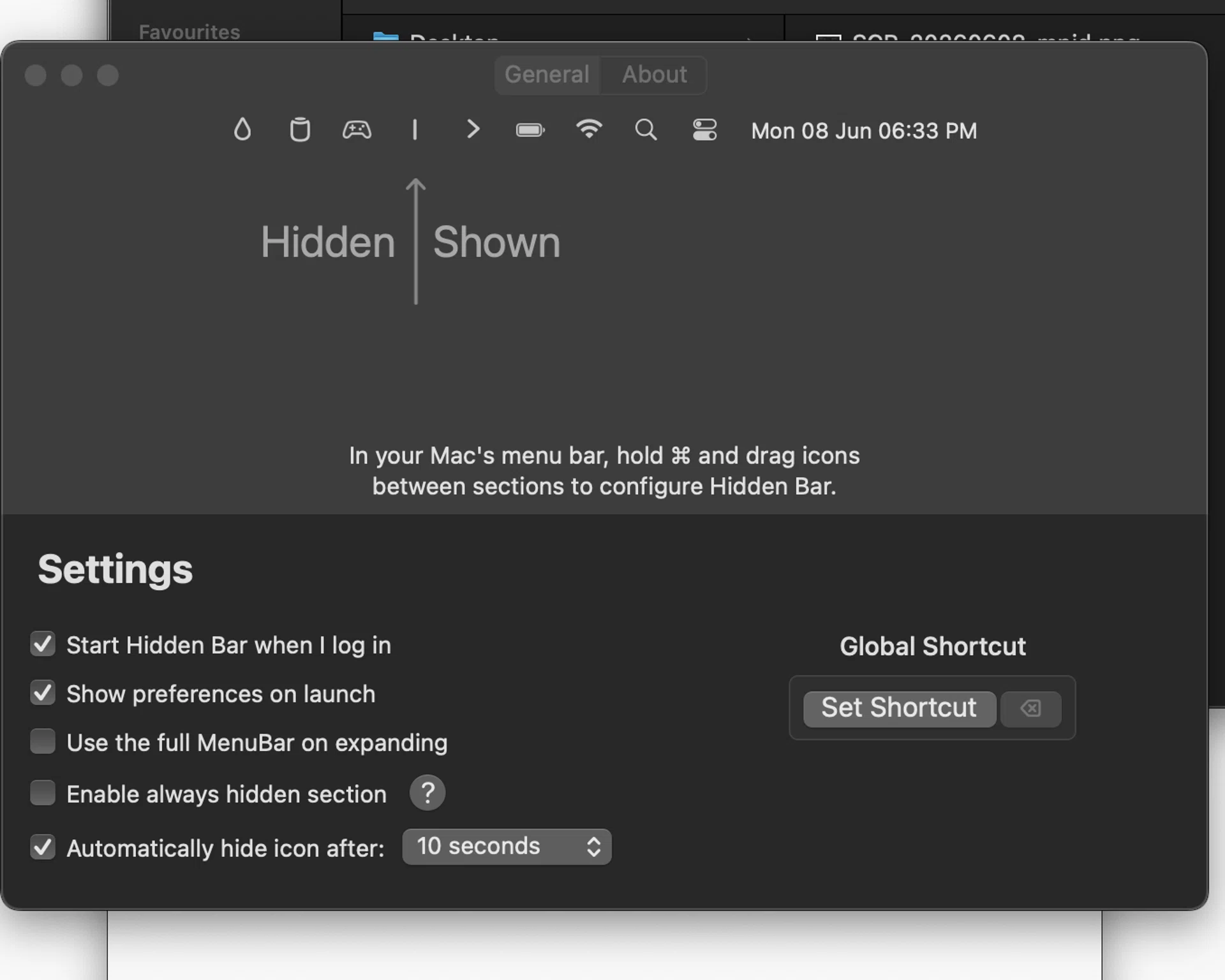
Hidden Bar launch menu and customisations.

Great for hiding away pesky icons you don’t use regularly.

Photo: HWZ
Maybe you’ve heard of Bartender, a popular app that helps manage your Mac’s menu bar when it becomes cluttered with too many icons. Well, Hidden Bar is the free alternative that lets users hide less important menu bar icons behind a simple expandable section.

Unlike Bartender, Hidden Bar is a much simpler tool and doesn’t include advanced features such as menu bar item search, automation tools, or extensive organisation options.

However, if you’re looking for a straightforward way to reduce menu bar clutter, Hidden Bar does the job well. It can hide icons from apps such as Dropbox, VPN clients, cloud storage services, and other background utilities, helping you maintain a cleaner workspace with fewer distractions.

You can download Hidden Bar from the App Store here.

4. Shottr

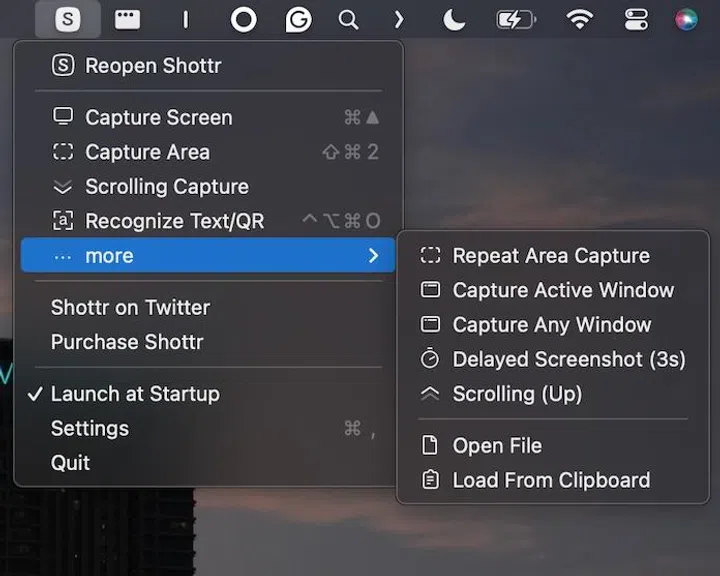
Shottr settings and functionalities.

You can also open pre existing images and annotate via Shottr.

Photo: HWZ

macOS already includes screenshot tools, but they are fairly basic. Shottr adds scrolling screenshots, fast annotations, text extraction, pixel-level cropping, and quick sharing tools. This makes it ideal for anyone who frequently needs to annotate screenshots for documentation or presentations. 

Instead of opening screenshots in Preview and manually editing them, Shottr streamlines the entire process. Best of all, it’s a free alternative to CleanShot X.

Shottr costs US$12 (~S$15.46), and you can check it out on its official website here.

5. LaunchBar

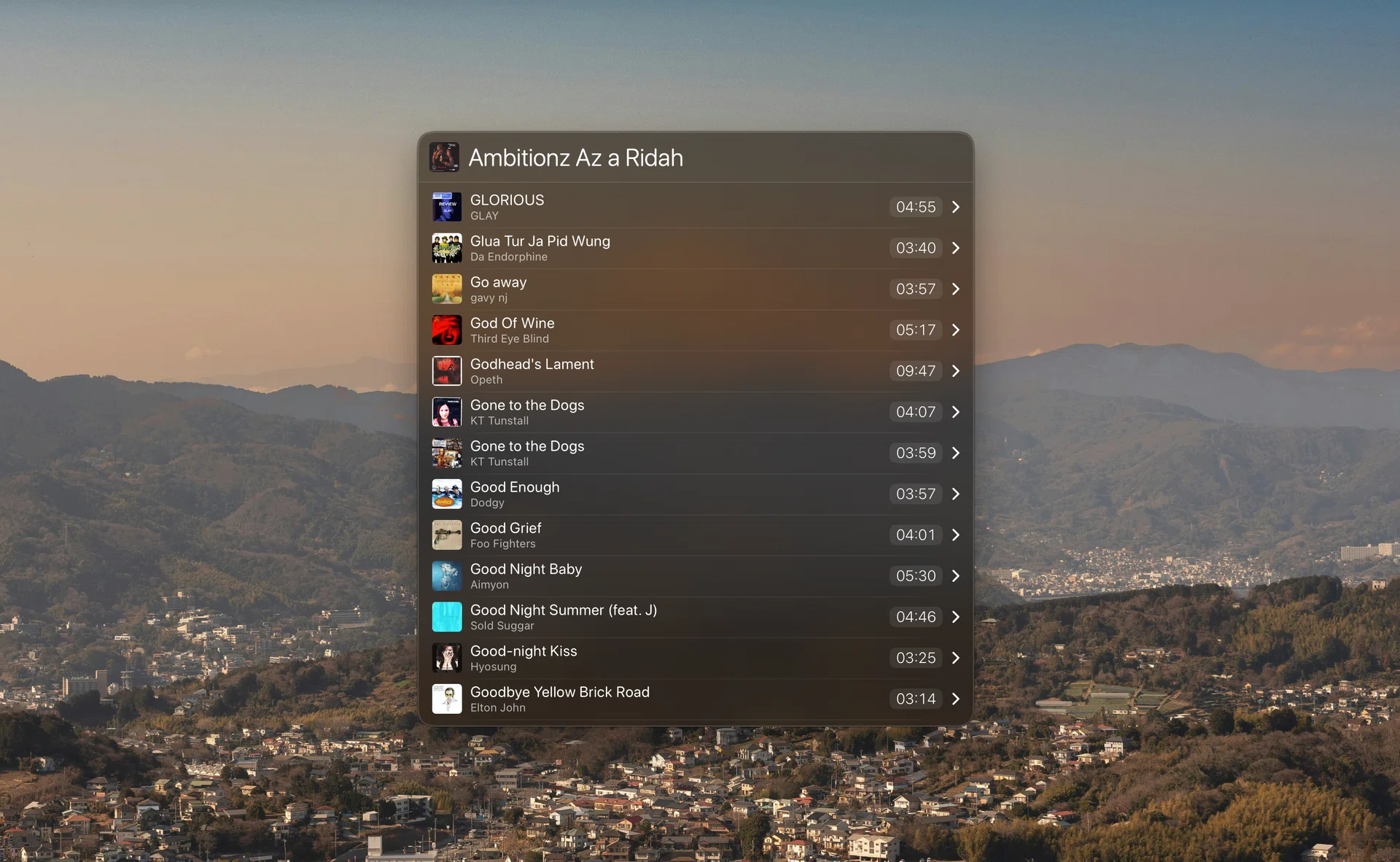
Launchbar in action

Launchbar even lets you browse your Apple Music playlist directly without having to launch the Music app.

While Apple’s Spotlight search has gotten a significant upgrade in macOS Tahoe 26 last year, it still falls behind in functionality compared to LaunchBar. The app allows users to launch applications, search files, perform calculations, manage clipboard history, control music playback, and trigger workflows entirely from the keyboard. Its adaptive abbreviation search is especially impressive. You can type shortened versions of app names and still pull up what you need almost instantly. 

For keyboard-first users, LaunchBar can help to reduce reliance on clicking through folders or digging through Finder. Overall, it helps streamline everyday tasks and, over time, as you continue using it, the app learns your habits and becomes even faster at predicting the items you want to access.

You can try out LaunchBar for free here. If you intend to purchase it, it costs a one-time fee of US$35 (~S$45).

6. Rectangle

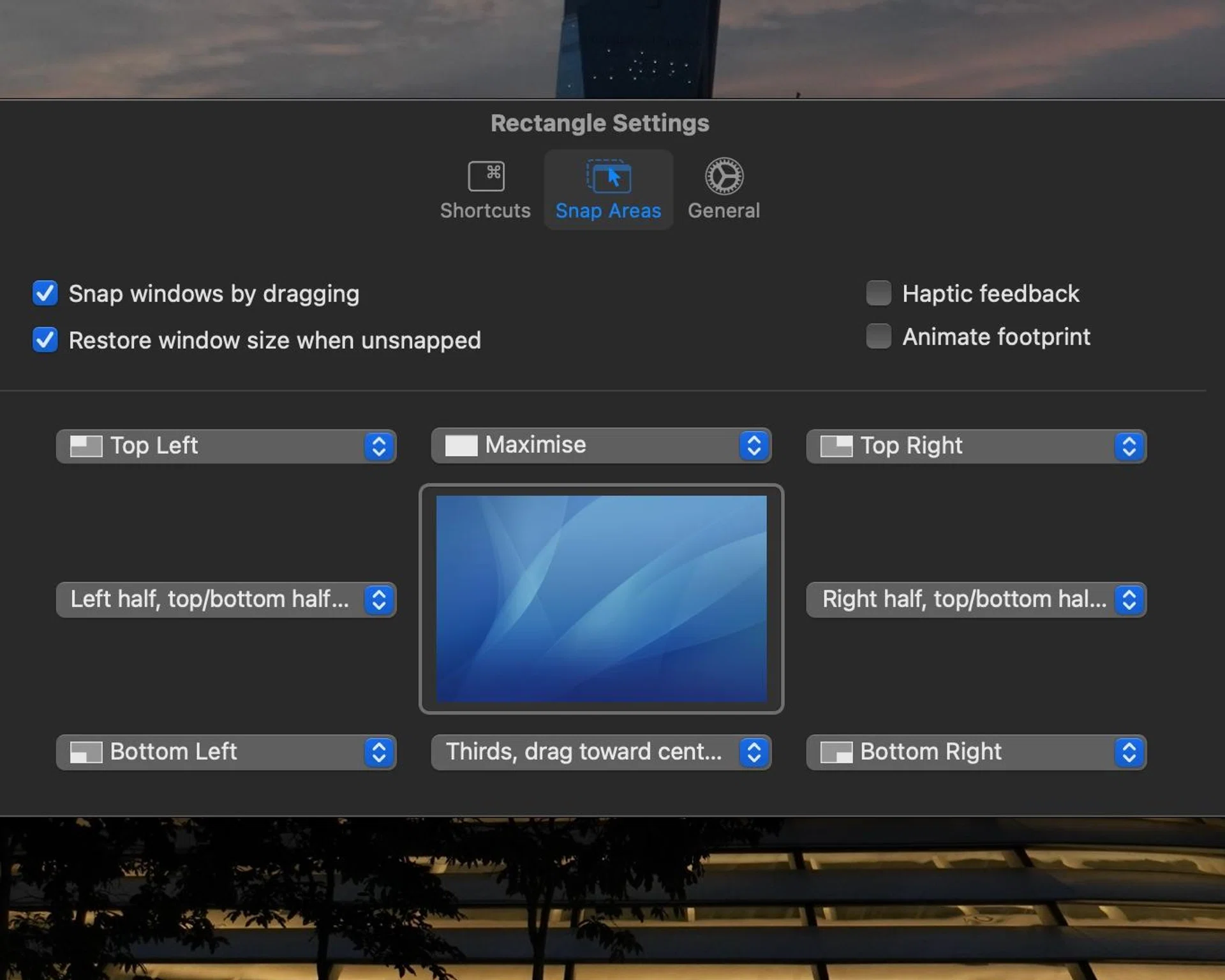
Setting multiple snap areas for applications

You can also set hotkeys to quickly shift tabs around.

Photo: HWZ

Bluntly put, window snapping on macOS is a letdown. If you’re a Windows user like me, Rectangle brings that functionality to macOS by letting users quickly resize and position windows using keyboard shortcuts or drag gestures. It supports half-screen snapping, quadrant layouts, and custom shortcuts. If you’re like me and have plenty of browsers and apps open, Rectangle makes multitasking far less painful, and it has your screen looking much more organised. 

Rectangle is available for download here.

7. FineTune

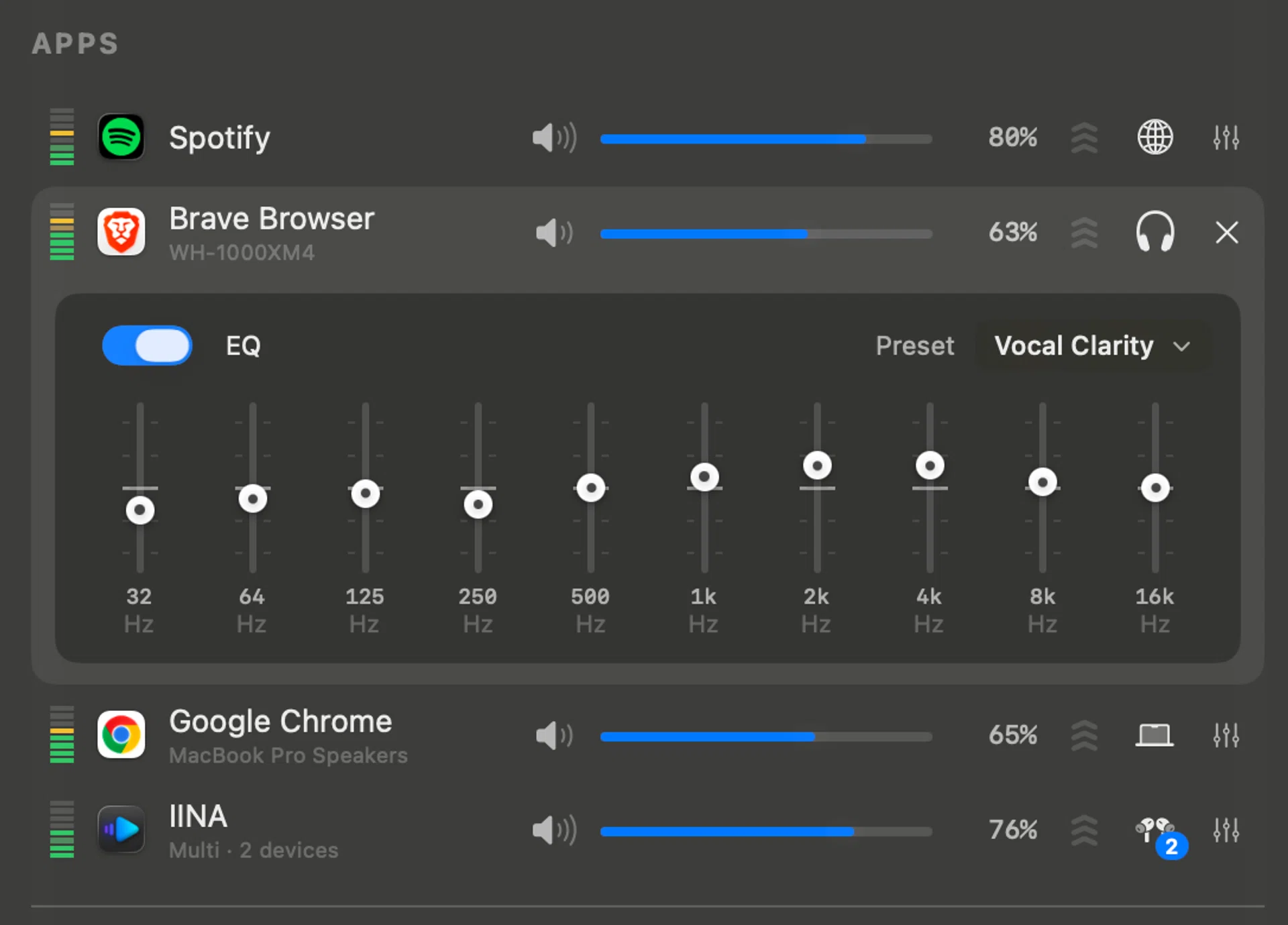
There is also an EQ function included within the app.

Adjust the volume of your apps the way you want it to be.

Photo: HWZ

If you regularly switch between Spotify, Apple Music, YouTube, podcasts, and other audio apps, managing media playback on macOS can quickly become messy. FineTune helps by bringing playback controls from different sources into a single, convenient interface.

If you’re interested in triyng out FineTune for yourself, it is available for download for free on its GitHub page here.

8. Consul

Converting a file from mp4 to gif and ensuring settings are correct

You can also specifically choose how you would like the file to be converted.

Photo:HWZ

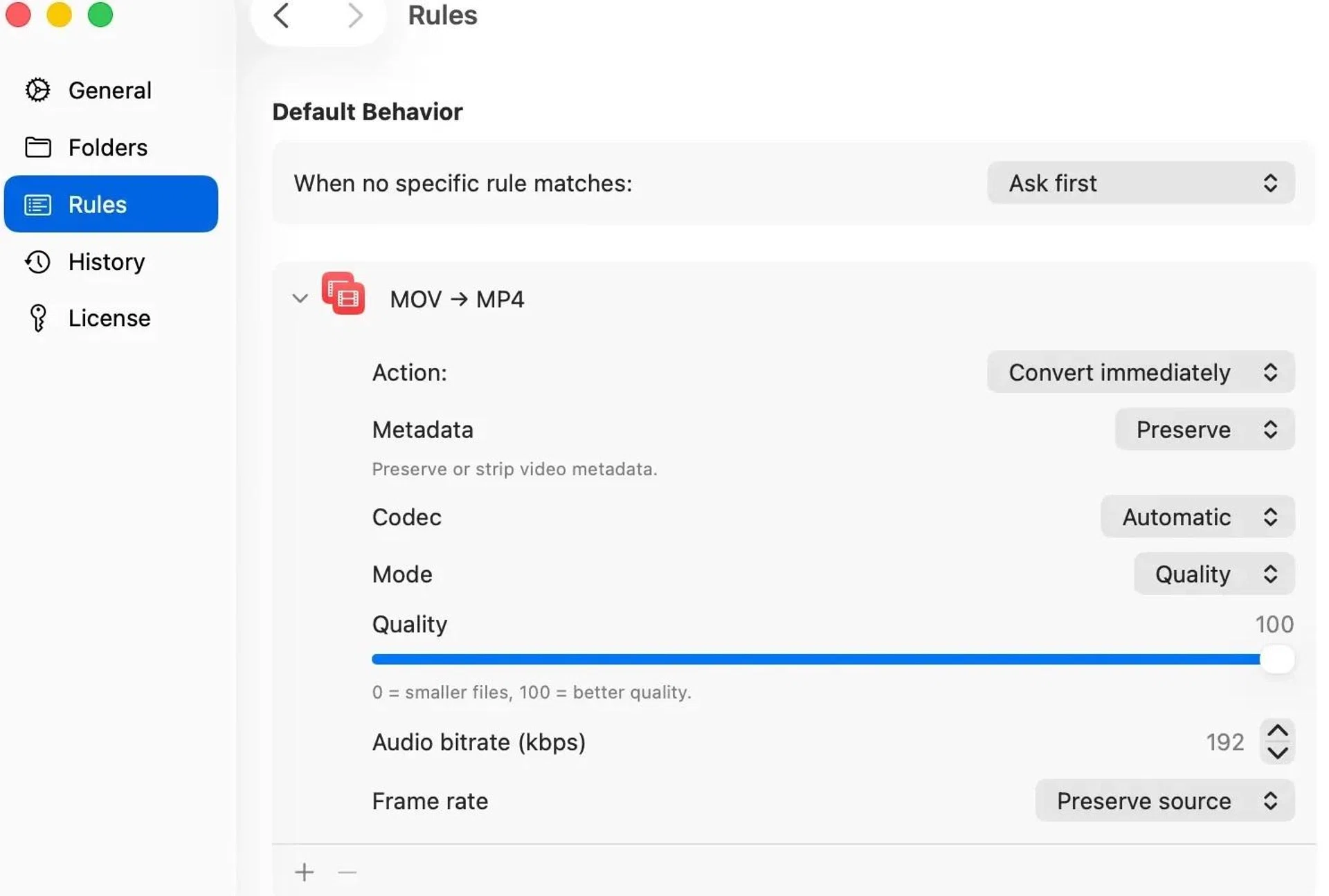
I was rather sceptical when I first stumbled upon Consul. On paper, it’s a file conversion tool that just requires you to rename a file extension in the Finder to automatically convert the file. In practice, it did just that. 

Simply rename a file extension in Finder, and the conversion happens automatically. Change a HEIC extension to JPG, and Consul instantly converts it into a JPEG file. The same logic applies to videos, audio files, documents, spreadsheets, and more.

The app runs quietly in your menu bar and monitors selected folders for renamed files. It also checks the actual file contents instead of blindly relying on the file extension, which helps prevent broken files. Everything is processed locally on your Mac as well, so users do not need to upload sensitive documents or media files to random websites just to convert them.

Consul is available for donwload for free via their official webpage here.

9. BetterDisplay

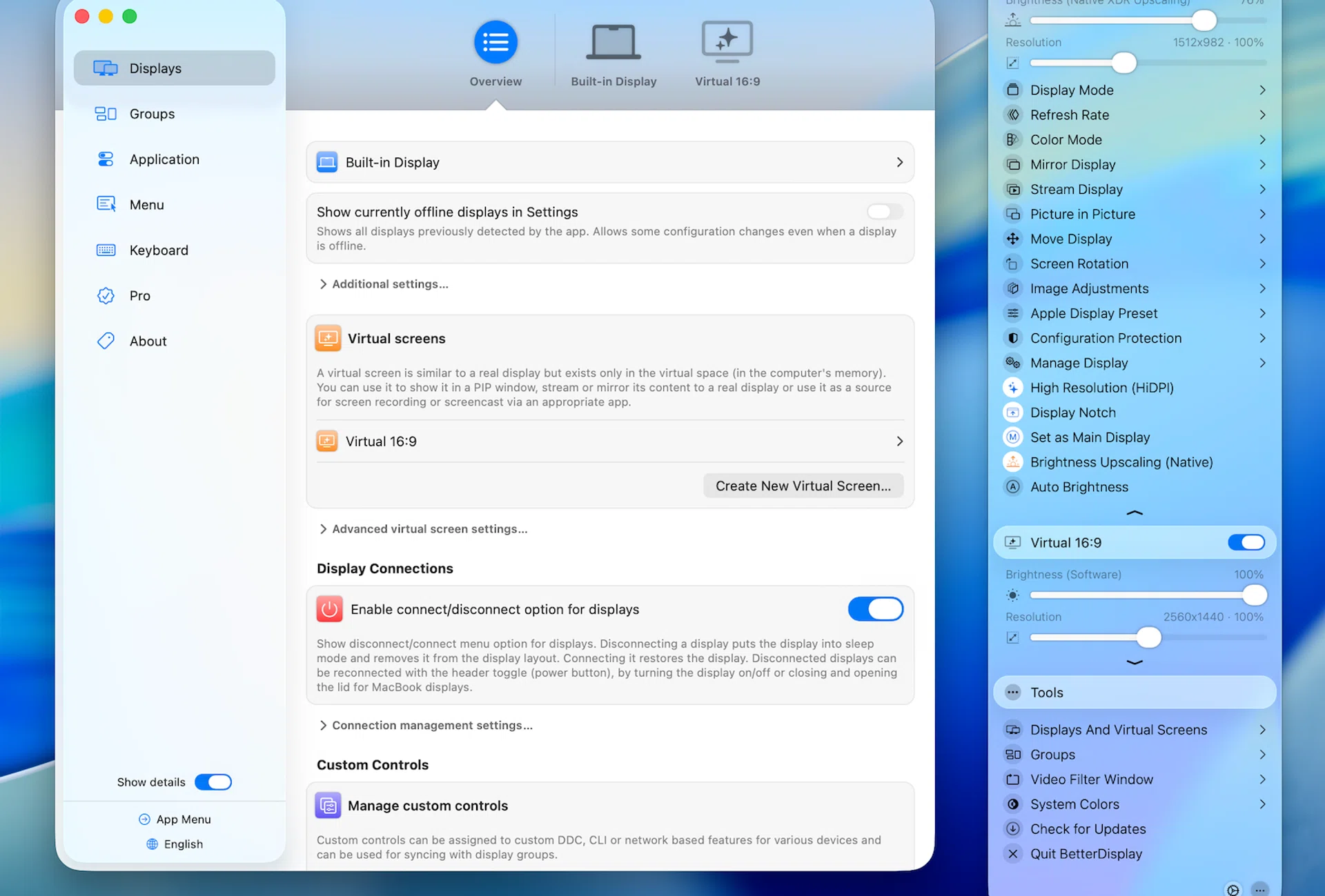
BetterDisplay basic functionality and menu.

Once you connect your mac to the display, it should show up automatically.

Photo: HWZ

External monitor support on macOS can still be inconsistent, especially when using ultrawide displays or third-party monitors.

BetterDisplay gives users much greater control over their displays, with features such as brightness control, resolution scaling, virtual displays, colour adjustments, and custom display settings. It can also unlock options that macOS does not normally provide, helping users get the most out of their monitors.

The app also offers advanced controls for external displays and devices, making it particularly useful for multi-monitor setups. If you regularly work with several screens, BetterDisplay can help overcome many of macOS’s display limitations and create a smoother, more consistent experience.

10. Setapp

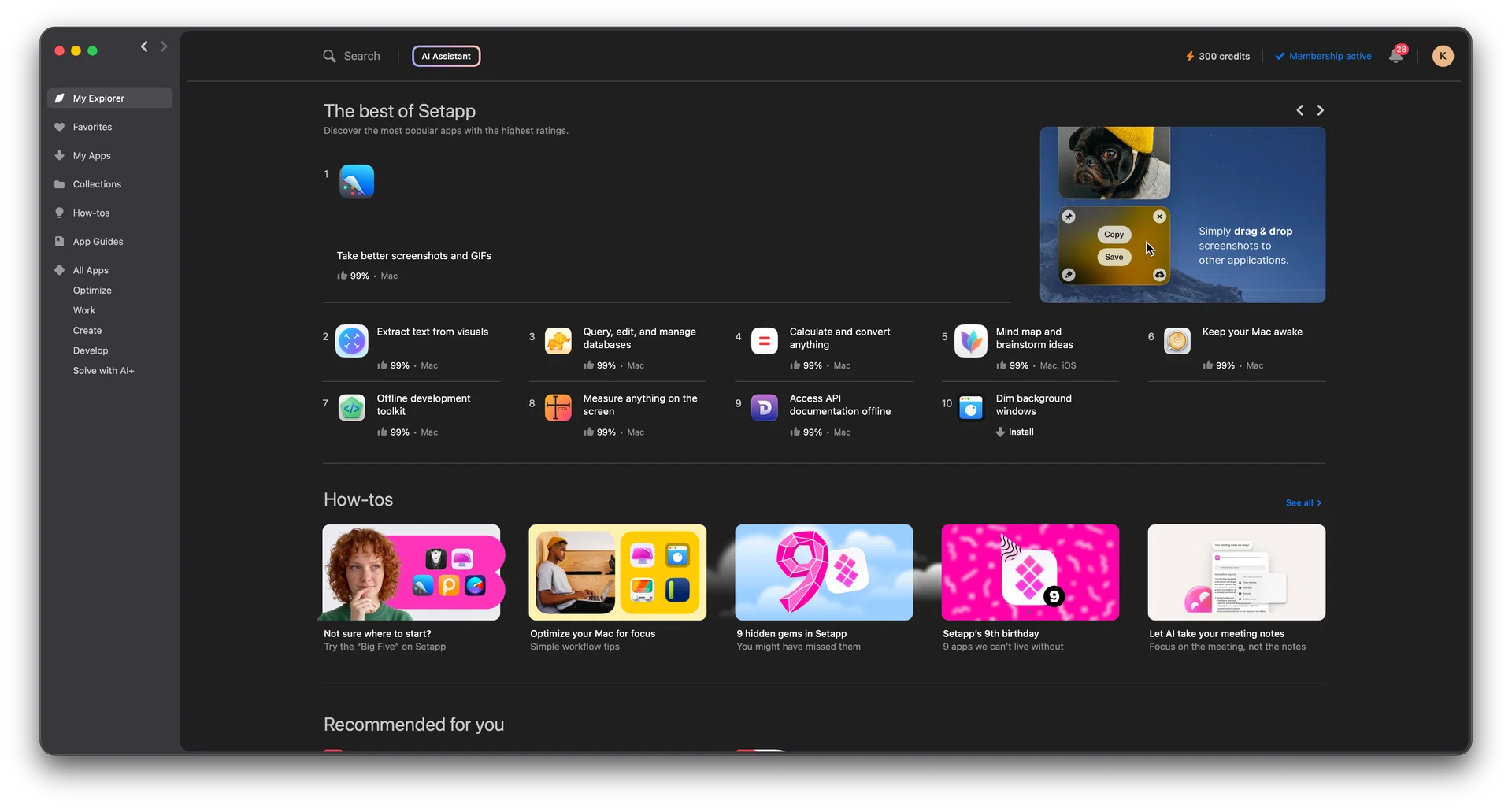
Setapp menu

Setapp’s value depends very much on how much of their apps you use.

Photo: HWZ

The easiest way to think of Setapp is that it’s kind of like a Netflix for Mac apps. A monthly access gets you access to their catalogue of apps. Now, it goes without saying that the value you get from this will depend greatly on how useful you find their apps to be. Some of the apps I use from Setapp are Craft for writing and planning, Bartender to clean up my menubar, iStat Menus for system monitoring, BetterTouchTool to remap keys, and more. Before you sign up, you should check their catalogue to see if the app you want is offered.

Setapp is available here and subscription starts at US$14.99 (~S$19.22) a month.


Read Full Article At Source

Share. Save. Don't Miss The Buzz: XFacebookRedditLINETelegramWhatsAppGmail