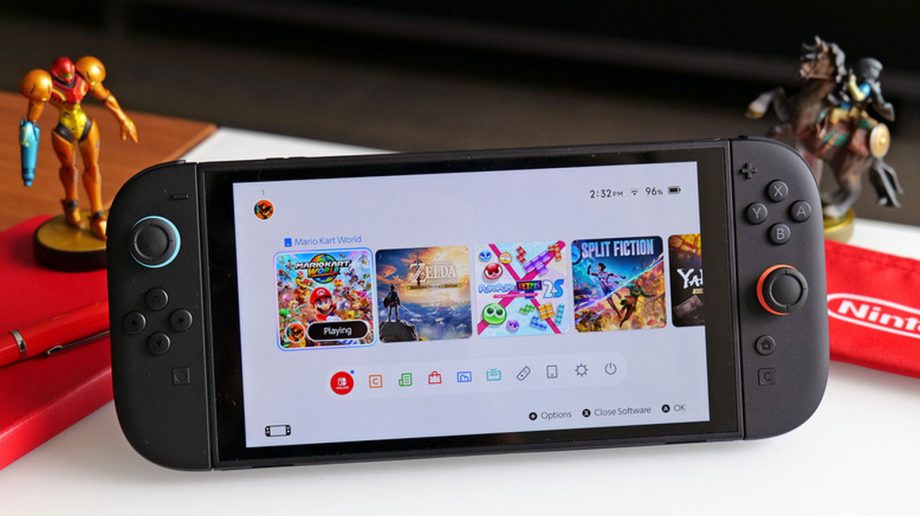
Try these tweaks if your Switch 2 won’t run your favorite games away from the dock for long.
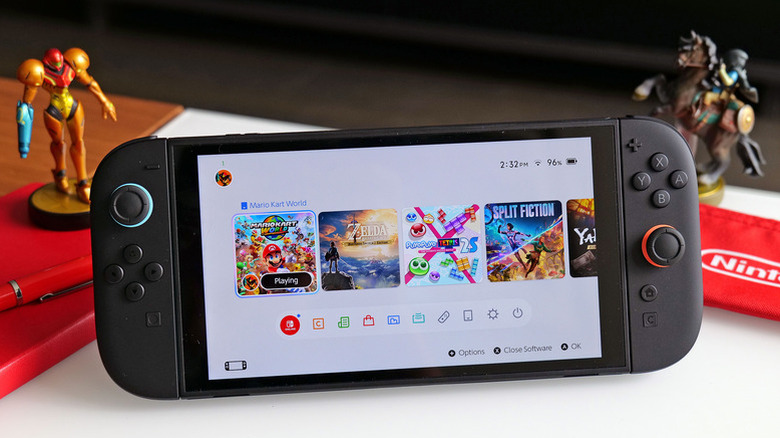
By the time the Nintendo Switch 2 finally arrived last year, its forebear was lagging behind many mid-range smartphones in the chipset department. This time, Nintendo really delivered on a console that handles modern games comfortably.
But with great power comes tradeoffs, and the biggest one for the Switch 2 is battery life. Like with most gaming handhelds, the Nintendo Switch 2’s battery life is given as a range rather than a specific number of hours. According to Nintendo, you can expect 2 to 6.5 hours on a full charge in handheld or tabletop mode (the console is always plugged into power when docked). But this can vary significantly depending on what games you play and your console settings.
If you play a lot of processor-intensive 3D games, which the Switch 2 is much better equipped to handle than the first Switch, you’re going to have to charge the console a lot. If you’re planning to make it your portable Cyberpunk 2077 machine, expect the battery life to fall close to the lower end of Nintendo’s quoted range. In most cases, it will be difficult to find a game and setup that’ll last you the full 6.5 hours.
If your Nintendo Switch 2 battery is draining fast, there are some steps you can take to ensure a full charge lasts as long as possible.
Lower the brightness
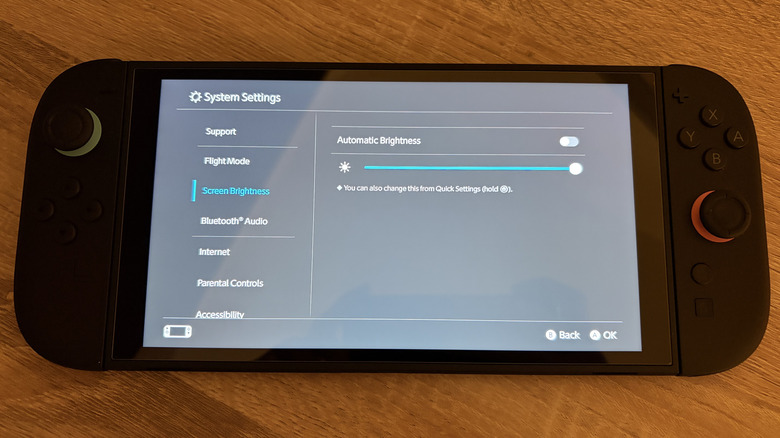
One of the easiest ways to prolong your Switch 2’s battery life is dropping the screen brightness. Unless having the slider cranked to the top is the only way you can see what’s happening, avoid full brightness since it’s a main factor of battery drain. The easiest way to adjust screen brightness is to press and hold the Home button on your controller, which brings up the Quick Settings menu. If needed, you can instead go to System Settings > Screen Brightness.
The system also has an automatic brightness setting, which in theory should set the brightness to the right level for the conditions around you. But this can become annoying, especially when you’re playing a game with lots of dark environments. Try getting into the habit of setting the display to a sensible brightness level each time you begin to play, and you’ll have the best balance of battery life and clarity.
Use Airplane Mode when you don’t need wireless
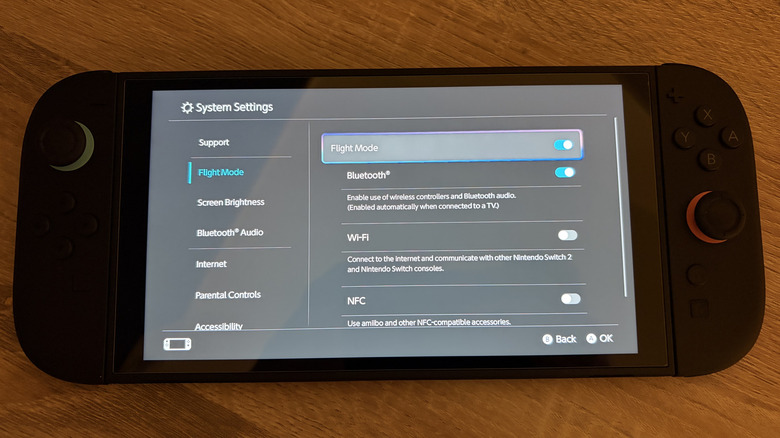
Your Nintendo Switch 2’s Bluetooth and Wi-Fi capabilities are important for downloading games, playing online and pairing devices, but they’re also a battery drain offender. Having Wi-Fi turned on means your console will scan for networks to connect to, which isn’t necessary if you’re playing offline.
To disable unnecessary communication, enable Airplane Mode (Flight Mode in some regions) from the same Quick Settings menu, or go to System Settings > Airplane Mode. When enabled, you’re able to customize what features still work. For example, you might turn Wi-Fi off while leaving Bluetooth enabled so you can keep using your wireless headphones. NFC is required for Amiibo features, which likely aren’t necessary when you’re trying to extend battery life.
Turn off non-essential gaming features
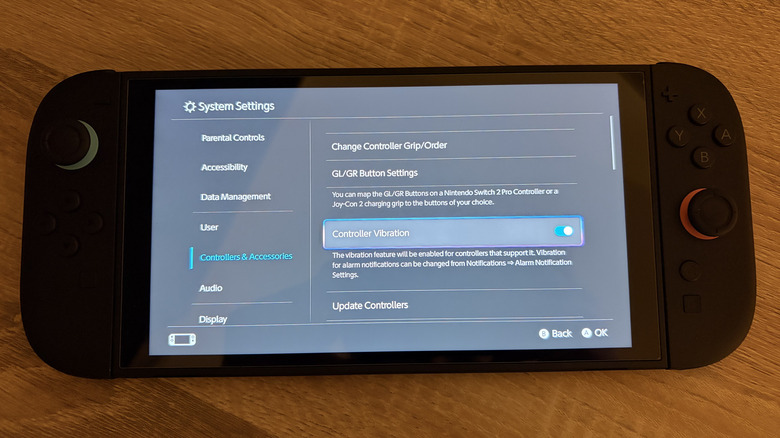
Nintendo is very proud of its HD Rumble 2 technology, but those motors are no friend to your battery. If you’re playing in handheld mode, turning the feature off (System Settings > Controllers & Accessories > Controller Vibration) claws back some juice without massively impacting your experience. If you’re playing without headphones, turning the volume down a bit will help too.
Similarly, you can turn off power-hungry Switch 2 features like the display’s native 120Hz refresh rate and HDR. To review those, head to System Settings > Display and disable 120Hz Output and HDR output respectively.
Given how few Switch 2 games support 120 fps gameplay right now, you may not miss the former much, although 120Hz also allows developers to optimize games to run smoothly at 40 fps. And as nice as it is to have HDR on a handheld display, the Switch 2’s doesn’t really get bright enough to give you the image quality you expect from true HDR. Give these a try both on and off for each game; it’s also worth checking in-game performance and display options.
Make use of battery optimization settings
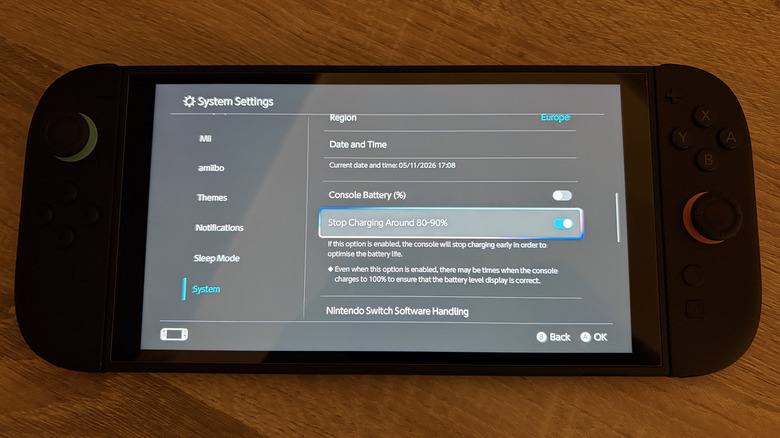
Like a lot of modern devices, the Switch 2 includes a toggle that tells the console to stop charging around 90 percent. This might sound counter-productive; why would you want to leave yourself with less battery life? The reason is that keeping your battery at 100 percent charge for long periods of time is bad for its long-term health, so those who leave their Switch 2 docked all the time should enable this setting to slow down degradation.
If you’re a mainly handheld player who keeps your Switch 2 in a case when it’s not in use, you probably don’t need to enable the 90 percent charge cap. But making that 10 percent sacrifice will keep your console’s battery in good shape for longer. Feel free to charge up to 100 percent occasionally before a flight or similar when you need as much power as possible while keeping the lower cap for daily use.
Save big games for the dock
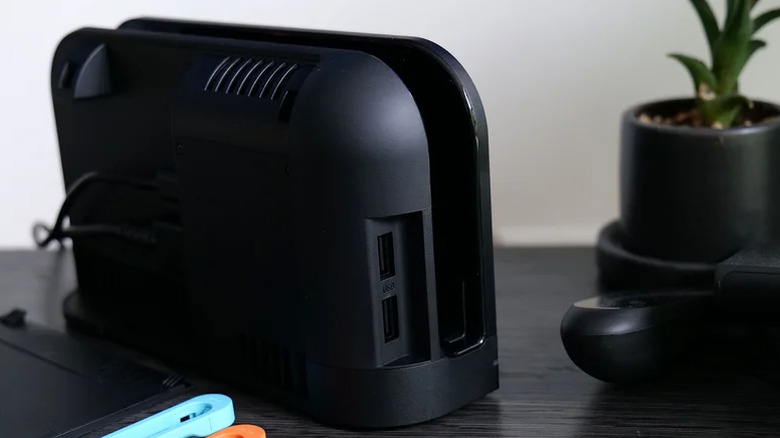
The Switch 2’s battery life range spans multiple hours for a reason. If you’re playing heavy titles like Elden Ring or Cyberpunk 2077 in handheld mode, their graphical demands means you’ll burn through battery far more quickly than if you’re playing a static puzzle game or SNES classics via Switch Online.
Graphically simpler indie games and 2D platformers, then, are generally more battery-friendly options (not to mention perfectly suited for portable play). Obviously one of the Switch 2’s biggest selling points is its ability to let you take all your games everywhere, but if plugging in the console isn’t an option, those lighter games in your backlog might be your best bet.
And if you find yourself always needing more power, consider picking up one of the best power banks to give your Switch 2 more longevity.
Read Full Article At Source