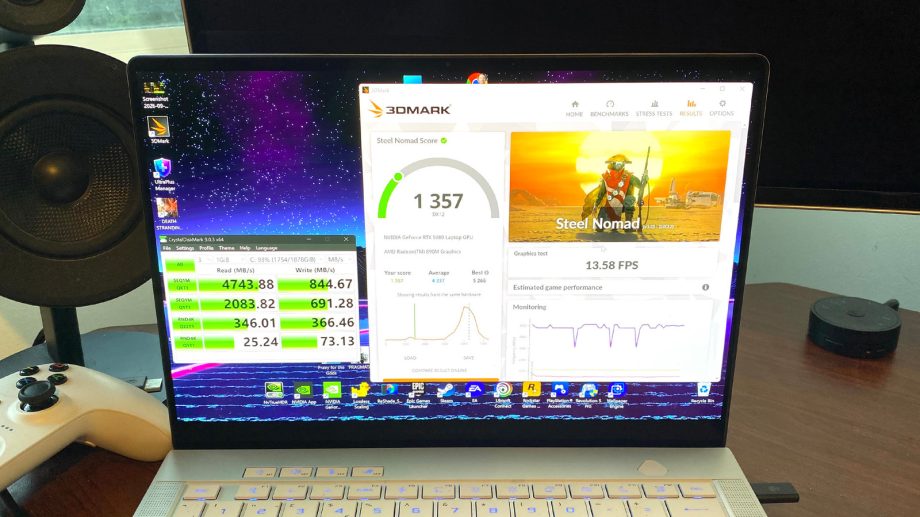
Put your PC through its paces to know what you’re getting from your hardware.
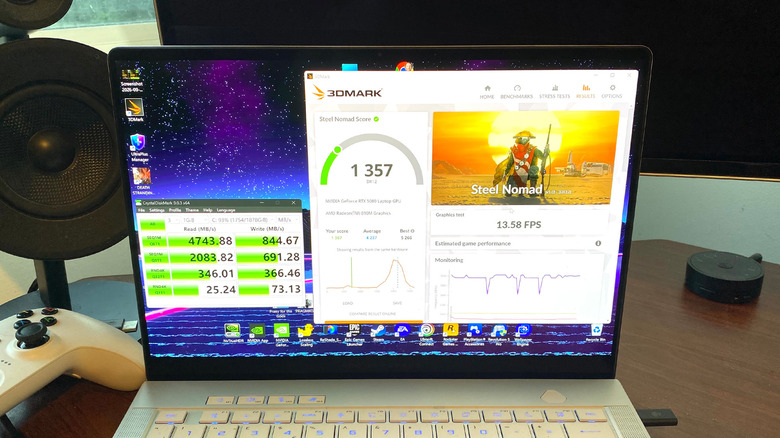
You don’t need to be a hardcore PC gaming enthusiast to run benchmarks on your rig; modern tools can be installed easily and will put your system through its paces with minimal fuss. Whether you want to test out GPU, CPU or SSD performance, using benchmarking software is easy and worth exploring.
Running benchmarks can also help you catch system problems. If you’re not seeing the scores you’d hope for, that could point to problems with your PC or laptop. Thankfully, tools like 3DMark, Cinebench, Superposition and Crystal3DMark all have free versions that will quickly show you how your system’s components are performing.
3DMark is an especially useful tool for gauging GPU performance, as its various in-built tools let you compare your card’s score to similar setups used by other gamers. Let us guide you through the best and most intuitive benchmarking tools to help you ensure your PC is delivering what it should.
What PC benchmark tests should I use?
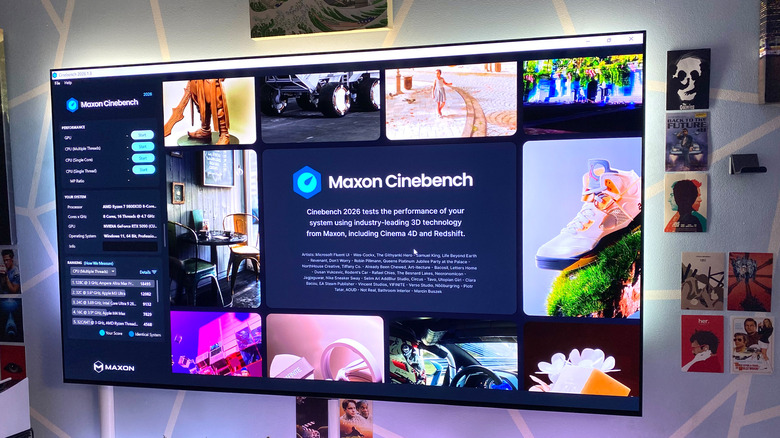
If you’re looking to benchmark your GPU, 3DMark has long been the most popular software for testing graphics card performance. You can download a free (“demo”) version of 3DMark on Steam, which gives you access to tests like Solar Bay and Time Spy. The no-cost version lets you compare your benchmarking results to comparable hardware from other users online. There’s a premium $30 version that allows you to run extended stress tests, which most people shouldn’t need.
Are in-game benchmarks more reliable than 3DMark tests?

If a game has a built-in benchmarking tool, its internal tests will normally give you the best indication of how a particular title will run on your system. 3DMark is still great for giving you base level hardware results you can then compare to other systems online. But for measuring straight-up FPS performance, in-game benchmarks are the way to go.
Open-world racer Forza Horizon 6 has a super comprehensive tool that measures GPU performance and CPU utilization, while also serving up FPS graphs that span maximum, minimum and average frame rate performance. Cyberpunk 2077 also has a useful in-game benchmark that runs through a crowded Night City scene, allowing you to quickly adjust and measure the impact of graphics settings to hit a steady frame rate.
Of course, many games lack benchmarking tools. If you’re curious to see real-time performance metrics and there’s no in-game option, Nvidia and AMD’s apps both have the option to display FPS in-game. Steam and Windows 11 (through the Xbox Game Bar) each offer this, too. As a fallback, the classic FRAPS is still around despite not being updated since 2013, and boasts reliable (though not very in-depth) benchmarking.
Can benchmarks help me detect problems with my PC?
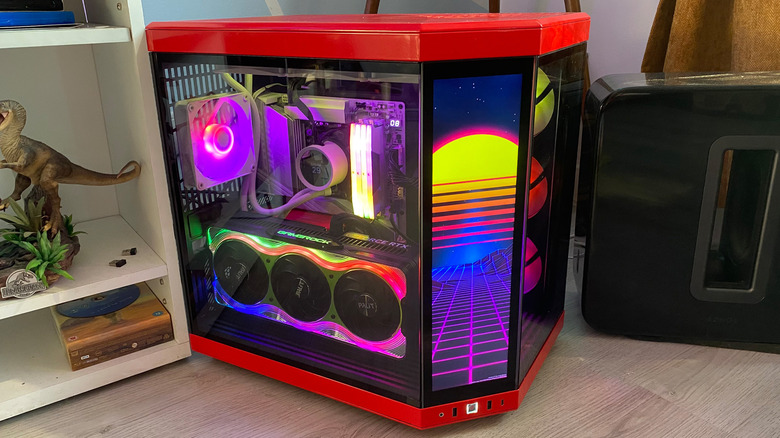
Absolutely, though it’s important to note real-world problems like regular Blue Screens of Death will provide a clearer indication of whether something is up with your PC than the odd worrying sign a benchmark may throw up. Still, benchmarks can point you towards potential system-wide issues.
What benchmarking problems should you look out for? A big one is if your test results are consistently (and significantly) lower when comparing them to similar hardware setups on 3DMark. Subpar results could suggest you’re using the wrong power settings in Windows or that you’re running too many background apps. Alternatively, your hardware may be undercooked for your needs. If you’re disappointed by gaming performance across benchmarks, your graphics card may not have enough VRAM.
Benchmarks can also help you identify cooling issues with your system. When running Cinebench, if you find rendering performance keeps dipping the longer the test continues, that may suggest your system is experiencing thermal throttling. The same goes for slow benchmark results in CrystalDiskMark. Monitoring and regulating the temperature of your PC’s core components is vital for maintaining optimal performance. Switching to liquid cooling for your PC may be worth it if heat is a problem for your system.
Read Full Article At Source