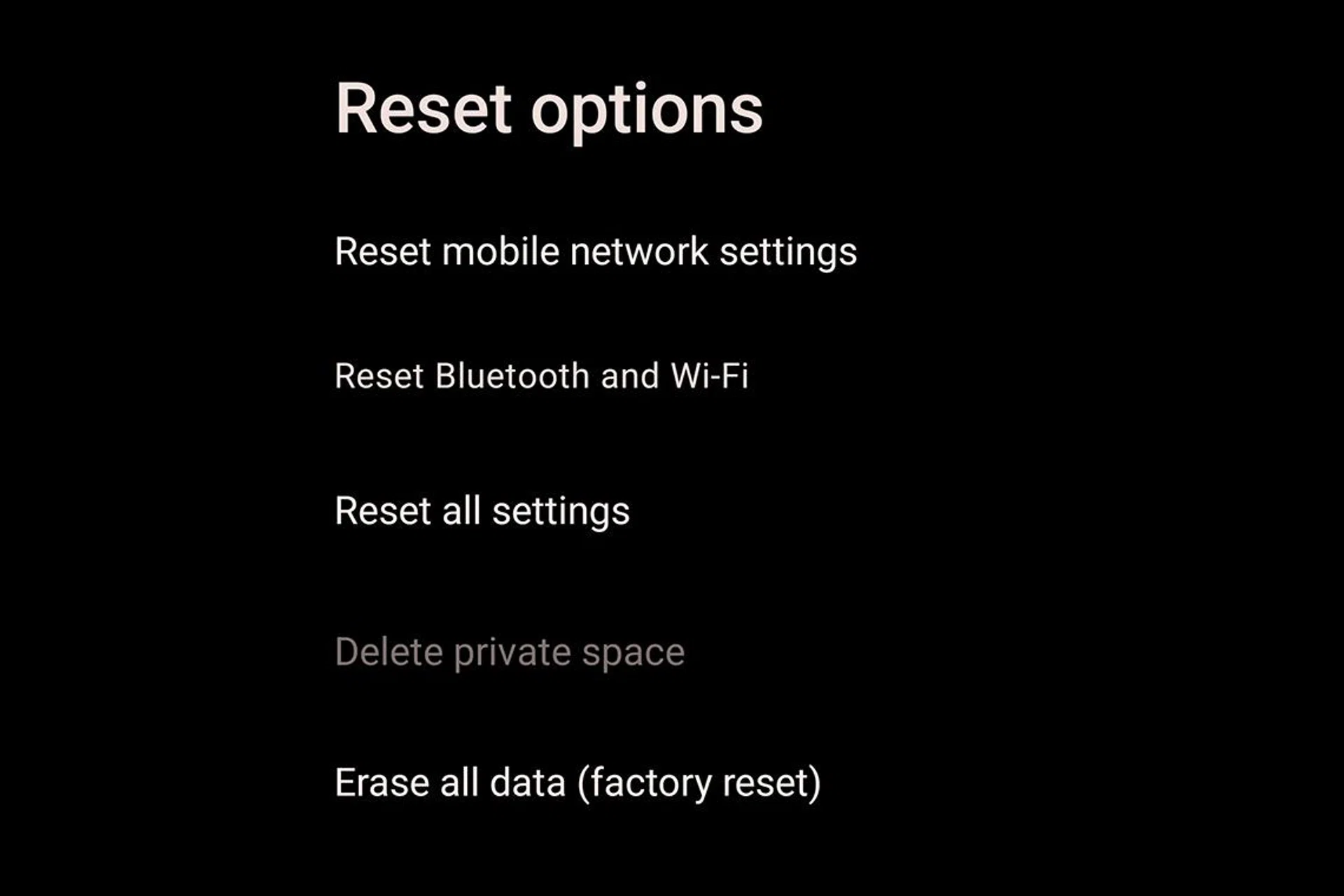
Fellow Android users, we’ve all been there. After a few years of trusty companionship, your phone starts to get slower. Menus start to stutter just a bit, and the number of apps and files on your phone feel like they’re physically weighing it down. While Android phones have made significant strides in reliability, issues with longevity still remain – particularly for those in the entry and mid-range segments. If you’re trying to ward off the temptation of getting a new device by sprucing up your current one, we’ve come up with a list of ways to help you out. While some steps are simple and don’t take much effort — some you can even do them right now — others will require a bit of time and money invested. Without further ado, here are some ways you can breathe new life into your phone.
1. Delete unused or unwanted apps
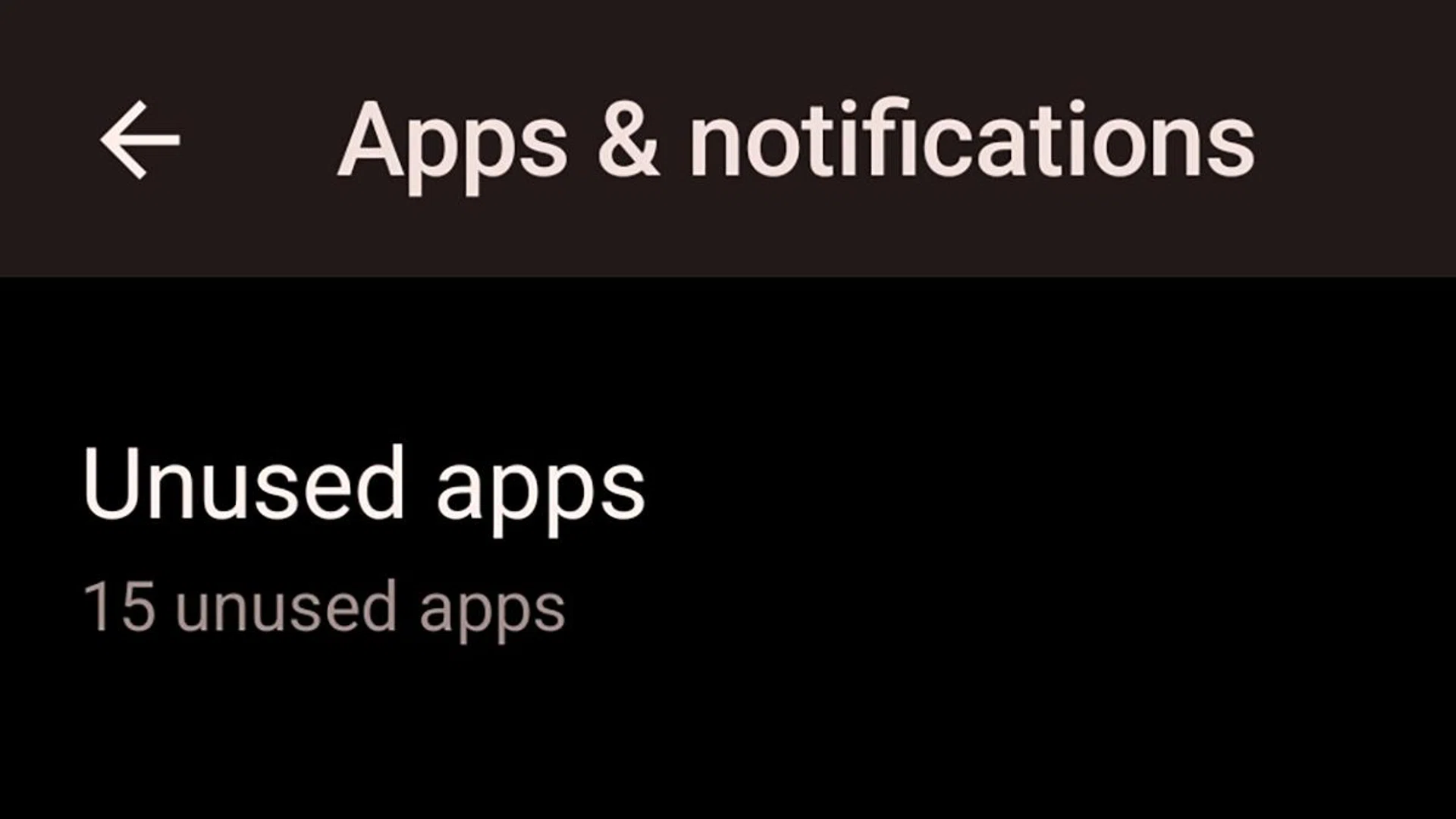
If you have a phone with Android 13 or later, you can usually find a list of unused and rarely used apps in your Settings’ App menu.
Photo: HWZ
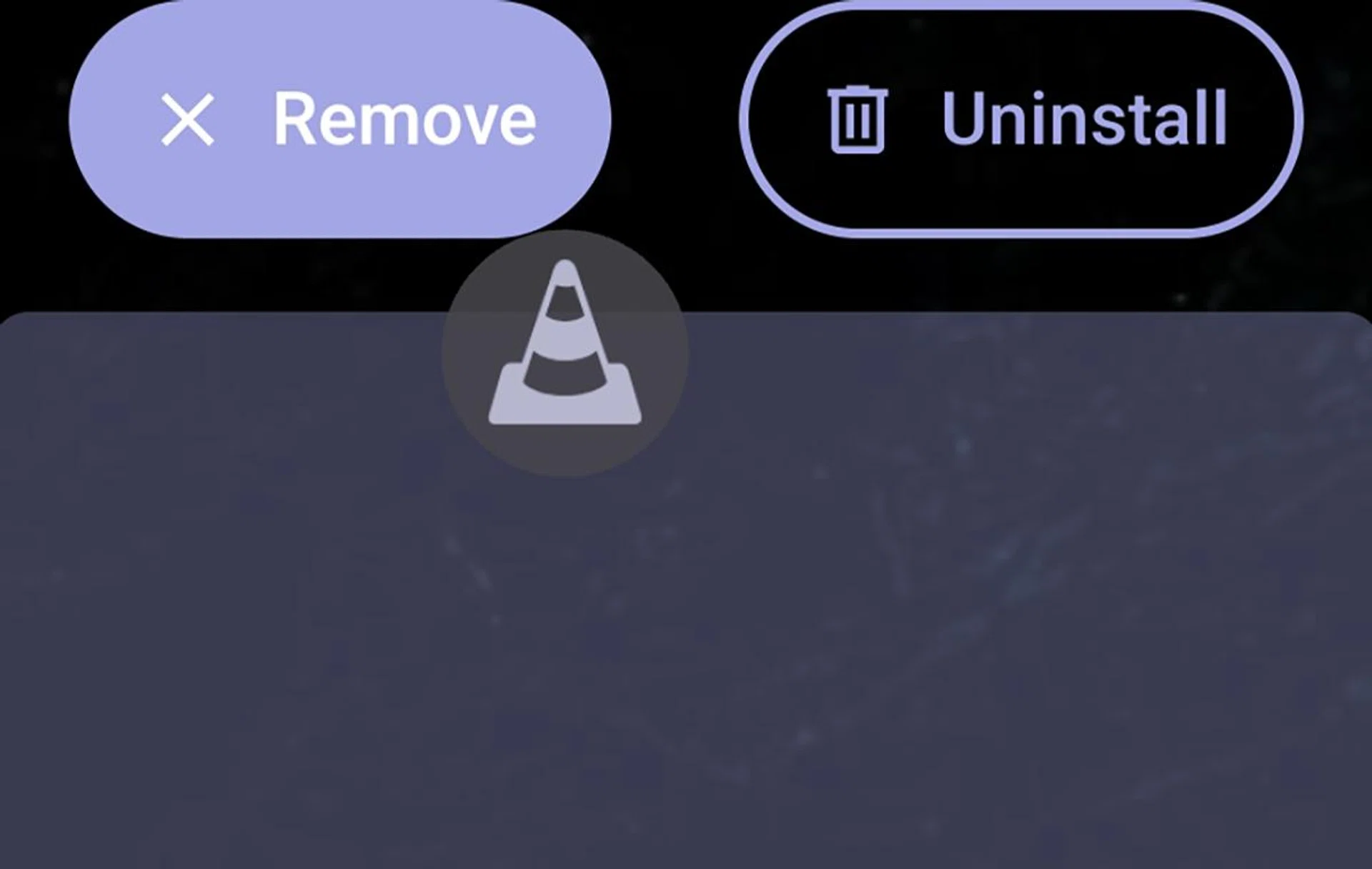
Getting rid of apps that you don’t use is one of the easiest ways to make your phone perform better. It reduces indexing load and also frees up space for apps that you actually do use.
Luckily, Android 13 and newer keeps track of which apps are unused or rarely used. If you have a Pixel phone, you can head to Settings, and go to Apps > Unused Apps. It’ll show you apps that you haven’t used in the past 30 days or longer, and you can choose which to keep and which to toss.
Just a note: being Android, the specific location for the Unused Apps menu may differ based on your phone’s manufacturer and Android skin. For instance, on Samsung phones, you can find it via Device Care > Storage > Unused apps. Generally speaking, go to Settings and look for the storage sub-menu.
Furthermore, you can also take this opportunity to delete apps that you might be better off without. TikTok, I’m looking at you.
2. Delete duplicate or unused files
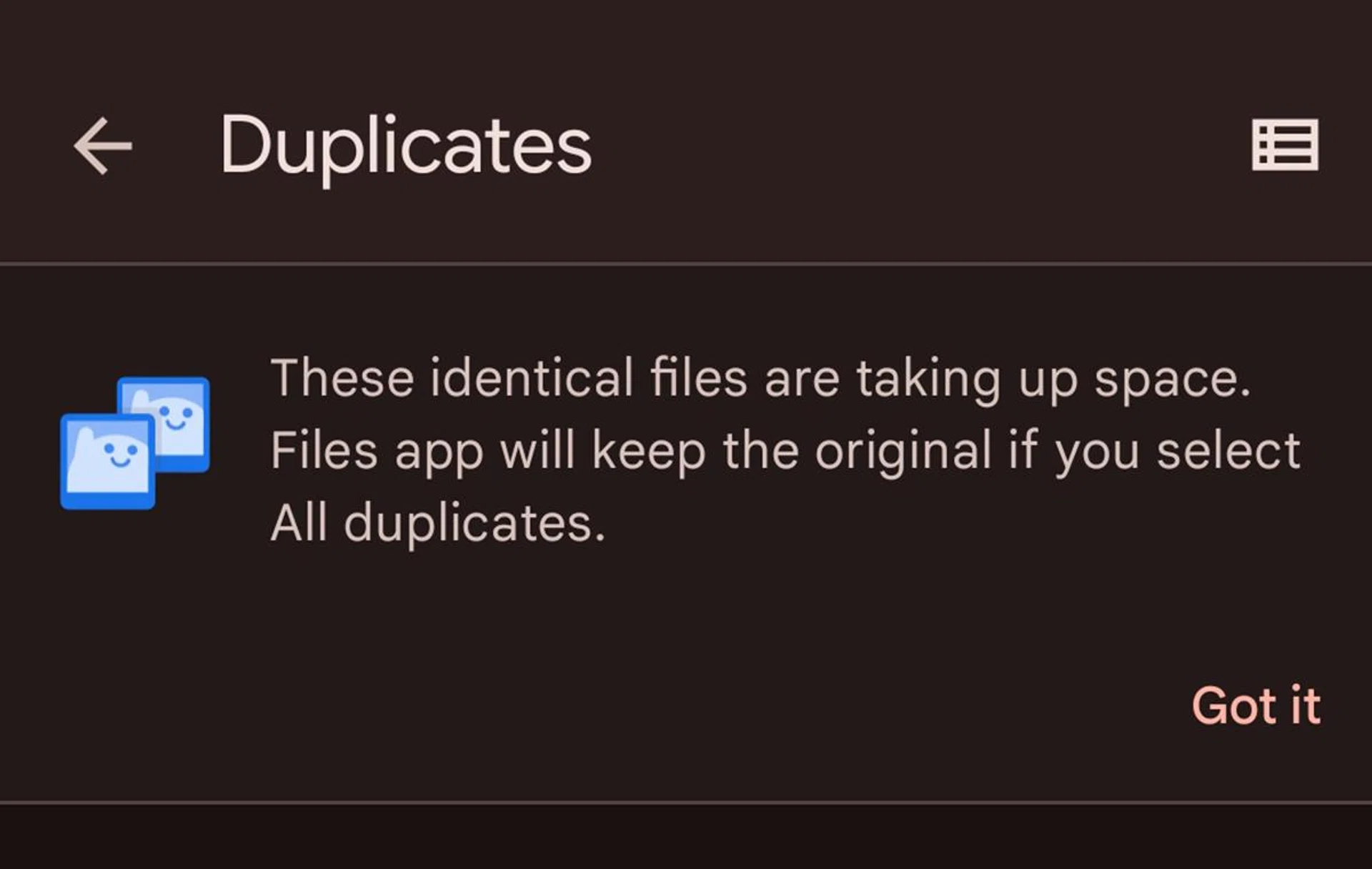
Files by Google keeps tracking of duplicate files, and can help delete them in bulk.
Photo: HWZ.
Like unwanted apps, you should also get rid of unwanted files. These can come in the form of duplicate files and photos, or even that email attachment that you accidentally downloaded multiple times. Understandably, poring over your entire storage will take forever, but there are tools which can help you out.